
To stop Viber notifications from popping up, open Viber’s notification settings and turn off alerts for the chats, groups, communities, calls, or desktop app features that are interrupting you. If pop-ups still appear, check your phone or computer’s system notification settings, because Android, iOS, Windows, and macOS can override or add their own alert behavior.
The best approach is not always to disable everything. In many cases, muting one chat, hiding lock screen previews, or turning off desktop banners is enough. The sections below show exactly where to look and what each setting changes.
Quick comparison: which Viber notification setting should you use?
| Problem | Best setting to use | What it changes |
|---|---|---|
| One person keeps interrupting you | Mute individual chat | Stops alerts from that conversation while keeping other Viber alerts active |
| A group chat is too active | Mute group chat | Silences group messages without leaving the group |
| Community posts are popping up | Mute or adjust community notifications | Reduces alerts from large public or private communities |
| Incoming Viber calls appear on screen | Call notification settings or device notification settings | Controls ringing, call banners, and call screen alerts |
| Messages show on lock screen | Disable previews or lock screen notifications | Protects privacy and prevents message content from appearing |
| Desktop pop-ups appear while working | Desktop notification settings | Stops banners, sounds, or previews on Windows and Mac |
| Nothing inside Viber works | Device-level notification settings | Blocks or limits notifications from the operating system |
How to mute an individual Viber chat
If only one conversation is causing the problem, use Viber mute chat instead of turning off all notifications. This keeps important alerts from other people active.
On Android and iPhone
- Open Viber.
- Go to the chat you want to silence.
- Tap the chat name or profile area at the top of the screen.
- Look for Mute, Mute chat, or a notifications option.
- Choose a mute period if Viber offers one, such as a few hours, one day, or until you turn it back on.
After muting, you should still see new messages when you open Viber, but the chat should no longer trigger normal pop-up alerts or sounds. The exact wording may vary slightly by app version and device.
How to stop Viber group notifications from popping up
Group chats are one of the most common reasons Viber feels noisy. Muting a group is usually better than leaving it, especially if you still need to check it later.
Steps to mute a Viber group
- Open the group conversation in Viber.
- Tap the group name at the top.
- Open the group information or notification menu.
- Select Mute or turn off message alerts for that group.
- If available, choose whether to mute temporarily or indefinitely.
Some groups may still show a badge count or unread marker inside the app. That is normal. Muting usually stops the interruption, not the message itself.
Tip: If a group is important but too active, mute it and check it at set times during the day. This is often more practical than constantly switching all Viber notifications on and off.
How to reduce Viber community notifications
Communities can generate more alerts than ordinary chats because they may include announcements, member activity, and frequent updates. If community notifications are popping up too often, adjust them directly from the community page.
Steps for communities
- Open the community in Viber.
- Tap the community name or information area.
- Find the notification or mute option.
- Mute the community or reduce the types of alerts you receive, depending on the available options.
If you follow several communities, repeat this for each one. There is no need to silence your entire Viber account if only one or two communities are the source of the problem.
How to change Viber notification settings inside the app
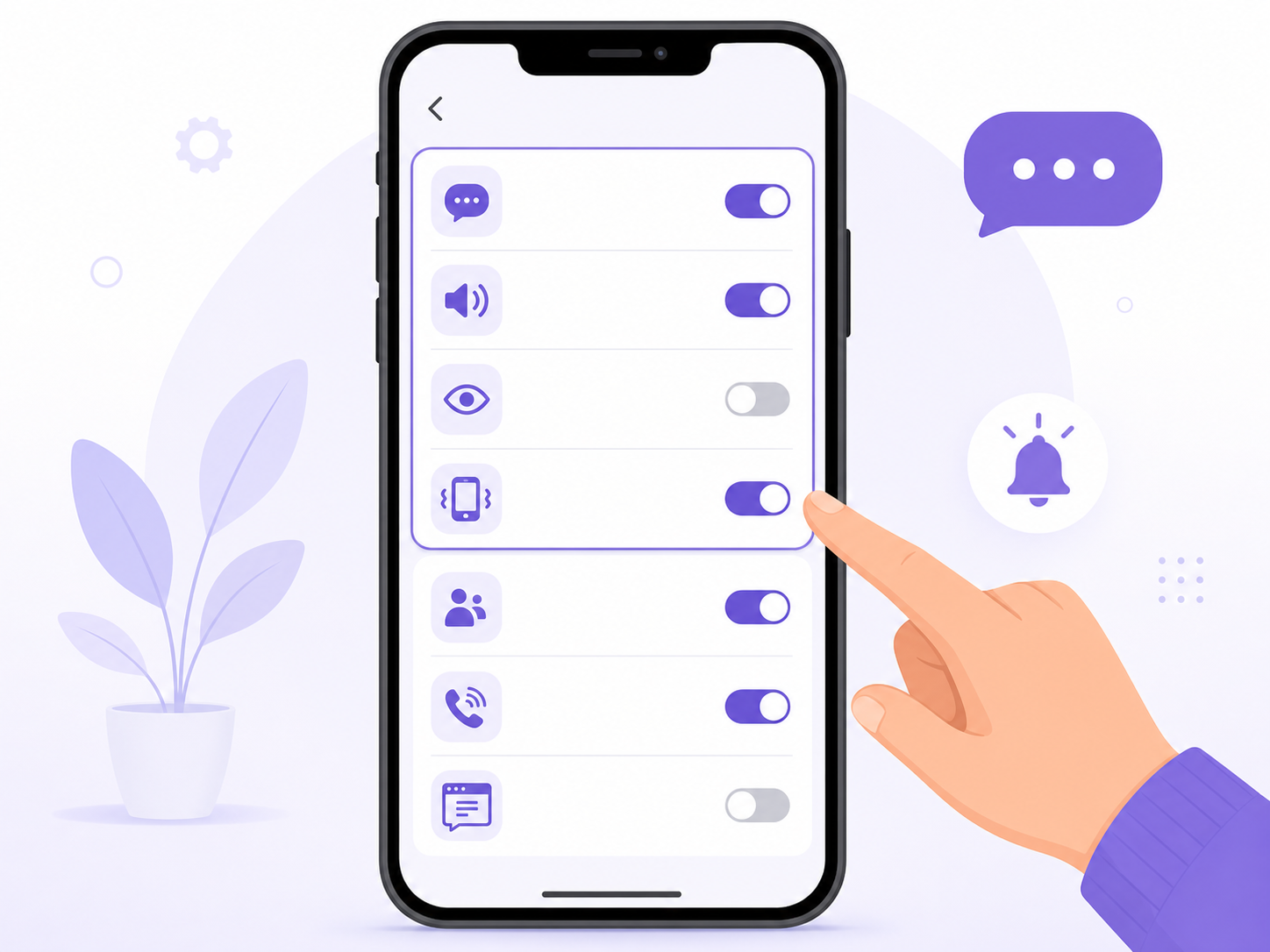
For broader control, use the main Viber notification settings. This is where you can manage message alerts, sounds, previews, vibration, and related notification behavior.
General steps
- Open Viber.
- Tap More or the menu icon, depending on your device.
- Go to Settings.
- Open Notifications.
- Turn off or adjust the notification options you do not want.
Common options may include message sounds, vibration, message previews, pop-up style alerts, and notification behavior for chats or calls. The options can differ between Android, iPhone, and desktop versions, so focus on the setting name and purpose rather than expecting every device to look identical.
How to stop Viber message previews on the lock screen
If your main concern is privacy, you may not need to stop all notifications. Instead, turn off message previews so the lock screen does not show the sender or message content.
Inside Viber
- Open Viber settings.
- Go to Notifications.
- Look for an option related to message preview, preview text, or showing message content.
- Turn it off.
On iPhone
- Open the iPhone Settings app.
- Tap Notifications.
- Select Viber.
- Tap Show Previews.
- Choose When Unlocked or Never.
On Android
- Open your phone’s Settings.
- Go to Notifications or Apps.
- Select Viber.
- Adjust lock screen notification behavior.
- Choose to hide sensitive content or disable lock screen notifications for Viber.
Android menus vary by brand. Samsung, Google Pixel, Xiaomi, Oppo, and other devices may use slightly different labels, but the setting is usually under app notifications or lock screen notifications.
How to stop Viber call notifications
Viber calls can appear differently from normal messages. On some devices, incoming calls may show as full-screen alerts, banners, or ringing notifications. If you want to stop those interruptions, check both Viber and your device settings.
Inside Viber
- Open Viber.
- Go to Settings.
- Open Notifications or call-related settings.
- Turn off call sounds, vibration, or call alerts if those options are available.
At the device level
- iPhone: Go to Settings, then Notifications, then Viber. Turn off sounds, banners, or lock screen alerts as needed.
- Android: Go to Settings, then Apps, then Viber, then Notifications. Look for call notification categories if your phone supports notification channels.
On Android, Viber may have separate notification categories such as messages, calls, group messages, or miscellaneous alerts. If call pop-ups continue, open each category and adjust its sound, vibration, banner, or lock screen setting.
How to stop Viber desktop notifications
If Viber is installed on your computer, desktop alerts can keep popping up even after you muted your phone. The desktop app has its own notification behavior, and your operating system may also display banners.
In Viber Desktop
- Open Viber on your Windows PC or Mac.
- Open the settings or preferences menu.
- Go to Notifications.
- Turn off desktop notifications, message previews, sounds, or pop-up alerts.
If you need the latest app version, use the official Viber Download page rather than relying on old installers. Notification menus can change between versions, and updating may make the controls easier to find.
On Windows
- Open Settings.
- Go to System.
- Select Notifications.
- Find Viber in the app list.
- Turn notifications off, or disable banners and sounds only.
On Mac
- Open System Settings or System Preferences.
- Go to Notifications.
- Select Viber.
- Turn off alerts, banners, sounds, or lock screen notifications.
If you use Viber on both phone and desktop, check both devices. Muting a chat may sync in some cases, but system-level notification permissions are controlled separately on each device.
Device-level settings that can stop Viber pop-ups completely
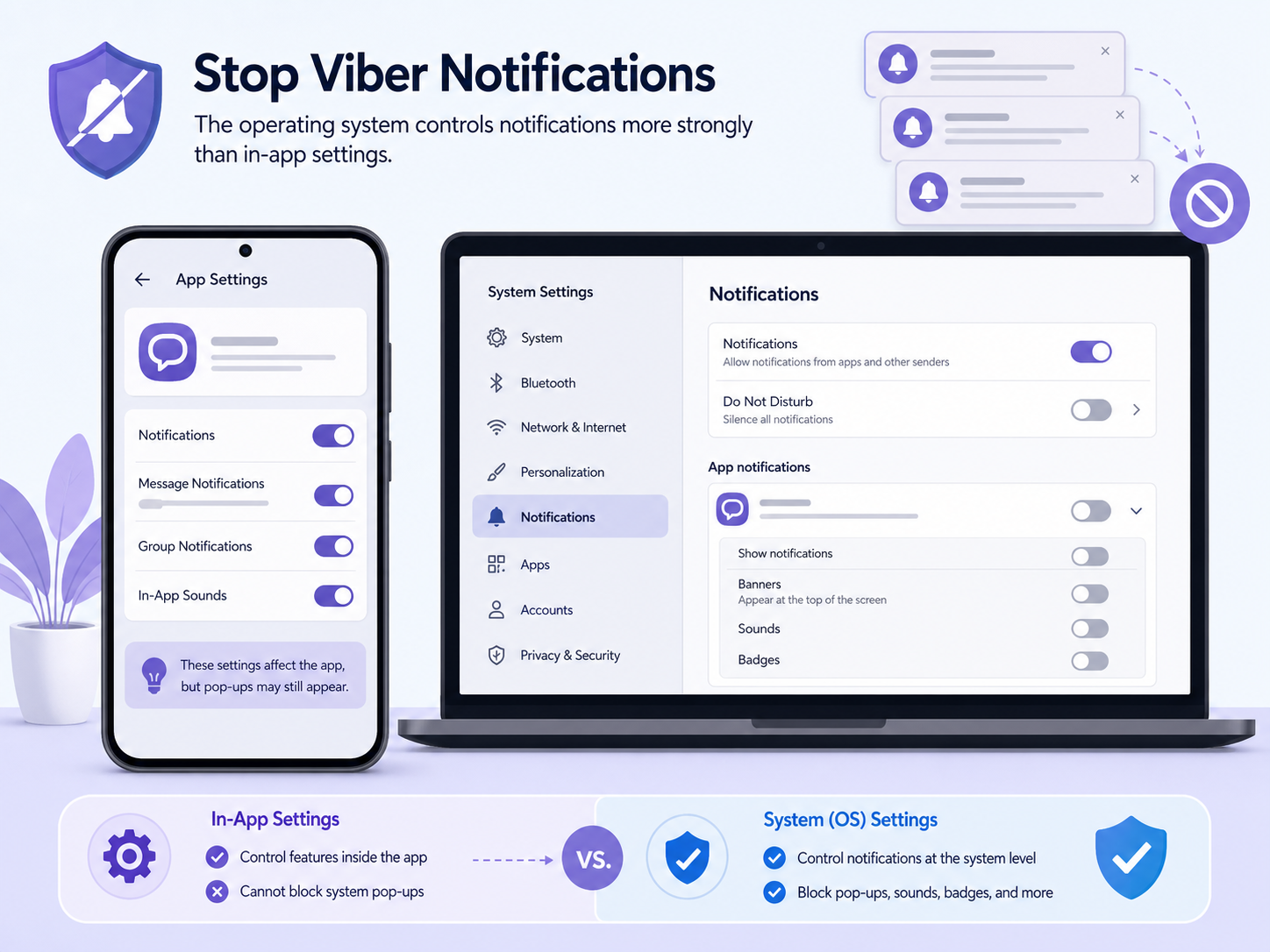
When Viber settings are not enough, the operating system gives you stronger control. This is also the best place to fix stubborn pop-ups that keep appearing after you changed settings inside the app.
Android notification settings
- Open Settings.
- Tap Apps or Apps & notifications.
- Select Viber.
- Tap Notifications.
- Turn off all Viber notifications, or adjust categories such as messages, calls, groups, and other alerts.
For a balanced setup, leave important categories on and disable only noisy categories. For example, you might keep call notifications active but turn off group message banners.
iPhone notification settings
- Open Settings.
- Tap Notifications.
- Select Viber.
- Turn off Allow Notifications to block all alerts.
- Or keep notifications on and disable specific alert locations such as Lock Screen, Notification Center, or Banners.
You can also turn off sounds while keeping badges, which is useful if you want to know messages arrived without being interrupted.
What to check if Viber notifications still pop up
- Check the exact device: You may have turned off notifications on your phone while desktop alerts are still enabled.
- Check chat-specific settings: A global setting may not silence every chat if a conversation has separate notification behavior.
- Restart the app: Close and reopen Viber after changing settings.
- Update Viber: Older app versions may show different menus or behave inconsistently.
- Review system permissions: Android, iOS, Windows, and macOS can all control notifications outside the app.
- Look for notification categories: Android users should check message, call, group, and background notification channels separately.
For more usage tips and feature updates, the Viber Blog can be useful when you want to keep the app working smoothly without changing every setting by trial and error.
Best setup for fewer interruptions without missing important messages
If you want a practical middle ground, start with this setup:
- Mute noisy individual chats, groups, and communities.
- Turn off message previews on the lock screen.
- Disable desktop banners during work hours.
- Keep call notifications on only if Viber calls are important to you.
- Use device-level settings only when app-level controls are not enough.
This approach reduces pop-ups while keeping Viber usable. Fully blocking notifications works, but it can also cause you to miss time-sensitive messages or calls.
FAQ
Why do Viber notifications still pop up after I muted a chat?
You may be seeing alerts from another chat, a group, a community, Viber calls, or the desktop app. Also check your phone or computer’s system notification settings, because they can control banners and lock screen alerts separately.
Can I mute one Viber chat without muting everyone?
Yes. Open the individual chat, tap the chat name or information area, and choose the mute option. Other Viber conversations can continue sending notifications.
How do I stop Viber messages from showing on my lock screen?
Turn off message previews in Viber notification settings, then check your device settings. On iPhone, use Settings, Notifications, Viber, Show Previews. On Android, open Viber’s app notification settings and hide lock screen content.
Will muting a Viber group remove me from the group?
No. Muting only stops or reduces alerts. You remain a member of the group and can still open it to read new messages.
How do I stop Viber pop-ups on my computer?
Open Viber Desktop settings and disable notification banners, sounds, or previews. If pop-ups continue, turn off Viber notifications in Windows notification settings or macOS notification settings.