
Viber calls are free when you call another Viber user through the app using Wi-Fi or mobile data. You can make both voice calls and a Viber video call from your phone or desktop, as long as both sides have Viber installed, an active internet connection, and the right microphone or camera permissions enabled. The main thing to remember is simple: Viber-to-Viber calls are free, while calls to regular phone numbers may require a paid Viber Out plan or credit.
If you are new to Viber, the calling feature works much like other internet-based messaging apps. Instead of using your mobile carrier’s voice network, it sends your audio and video through the internet. That is why call quality depends more on Wi-Fi strength, mobile data speed, device performance, and permissions than on your phone plan.
How free calls on Viber work
Free calls on Viber are app-to-app calls. This means the person you are calling must also use Viber and be connected to the internet. When you tap the phone or video icon inside a chat, Viber places the call through its calling service rather than through your carrier’s standard call system.
There are two common types of Viber calling:
- Voice calls: Audio-only calls between Viber users. These usually need less bandwidth and work better on weaker connections.
- Video calls: Calls that use both microphone and camera. These need a stronger and more stable connection, especially for HD video.
Viber may use your mobile data if you are not connected to Wi-Fi. The call itself is free from Viber, but your mobile carrier may still count the data against your plan. If you have limited data, use Wi-Fi for longer calls or group video chats.
What you need before making a Viber call
Before starting a call, check these basic requirements. Most calling problems come from one of these areas.
- A Viber account: You need to register Viber with your phone number.
- The latest app version: Updating helps prevent calling bugs and compatibility issues. If you need the app, use the official Viber Download page.
- Internet access: Wi-Fi or mobile data must be active on both devices.
- Microphone permission: Required for voice and video calls.
- Camera permission: Required for video calls.
- Speaker or headphones: Optional, but useful for clearer audio and less echo.
How to make a free voice call on Viber
Making a Viber voice call is straightforward. The exact layout may vary slightly between iPhone, Android, and desktop, but the steps are generally the same.
- Open the Viber app on your phone or computer.
- Go to the chat with the person you want to call, or search for their contact.
- Make sure the contact has Viber. If they do not, you may see an invite option instead.
- Tap the phone icon near the top of the chat screen.
- Wait for the other person to answer.
- During the call, use the mute, speaker, or end-call buttons as needed.
If the call does not connect, check whether the other person is online, whether your internet connection is stable, and whether Viber is allowed to use background data on your device.
How to make a Viber video call
A Viber video call adds your camera feed to the voice call. It is useful for family calls, remote check-ins, and small group conversations, but it needs more bandwidth than audio-only calling.
- Open Viber and choose the contact or chat you want to call.
- Tap the video camera icon.
- Allow camera and microphone access if your device asks for permission.
- Once the call starts, position your phone or webcam so your face is well lit.
- Use the camera switch button if you want to change between front and rear cameras.
- Tap the video button to turn your camera off if your connection becomes weak.
For the best experience, make video calls on a stable Wi-Fi connection. If the video freezes or becomes blurry, switching off video for a minute often lets the audio recover.
Voice calls vs video calls on Viber
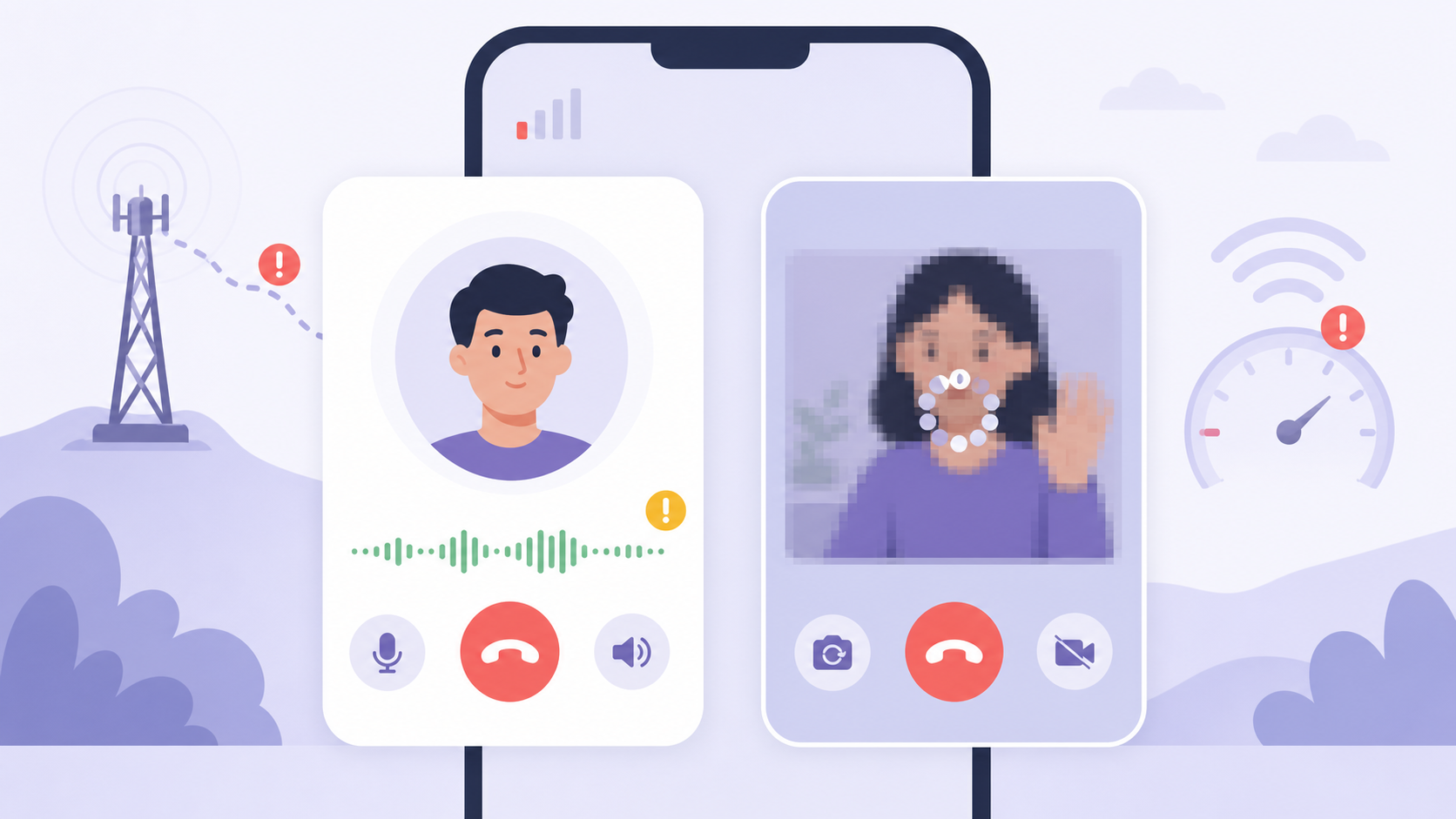
Both call types are useful, but they behave differently when the network is slow. This comparison can help you choose the right option.
| Feature | Viber voice call | Viber video call |
|---|---|---|
| Best for | Quick conversations, weak networks, saving data | Face-to-face chats, meetings, family calls |
| Internet requirement | Moderate and stable connection | Faster, more stable connection |
| Device permissions | Microphone | Microphone and camera |
| Data use | Lower | Higher |
| Battery use | Lower | Higher because the camera and screen stay active |
Internet requirements and call quality tips
Viber does not require a special phone plan for app-to-app calls, but it does need a reliable internet connection. Call quality is affected by speed, latency, signal strength, background apps, and device hardware.
Use Wi-Fi when possible
Wi-Fi is usually better for long calls and video calls, especially if your mobile signal is weak. Stay close to the router and avoid calling from areas with thick walls, elevators, basements, or crowded public networks.
Check mobile data settings
If you are using mobile data, confirm that Viber is allowed to use cellular data. On some phones, data saver, low power mode, or background restrictions can interrupt calls or prevent incoming calls from ringing.
Close heavy apps
Streaming, cloud backup, large downloads, and online games can compete with Viber for bandwidth. If your call sounds choppy, pause those activities before calling again.
Use headphones to reduce echo
Echo often happens when your microphone picks up sound from your speaker. Headphones or earbuds usually fix this immediately. If the other person hears echo, ask them to lower speaker volume or use headphones too.
Keep the app updated
Updates often include calling improvements, bug fixes, and security patches. If calls suddenly stop working after a system update, updating Viber should be one of the first things you try.
How group calls work on Viber
Viber also supports group voice and video calls, depending on your app version and device. Group calls work best when everyone has a stable connection and uses an updated version of the app.
- Open a group chat in Viber.
- Tap the voice call or video call icon.
- Select participants if Viber asks you to choose who to invite.
- Start the call and wait for members to join.
- Use mute when you are not speaking to reduce background noise.
For group video calls, a strong Wi-Fi connection matters even more. One weak connection can cause delays for that participant, but it does not always mean everyone else will have the same problem. If a group video call becomes unstable, ask participants with poor connections to turn off video and stay on audio.
Permissions you should check
If Viber cannot access your microphone or camera, calls may connect without sound or video. Permissions are managed by your device system, not only inside the Viber app.
On iPhone
- Open Settings.
- Scroll to Viber.
- Turn on Microphone for voice calls.
- Turn on Camera for video calls.
- Check Notifications if incoming calls are not ringing.
On Android
- Open Settings.
- Go to Apps and choose Viber.
- Open Permissions.
- Allow Microphone and Camera.
- Check Mobile data and Battery settings if calls disconnect in the background.
On desktop
For desktop calls, make sure your computer has a working microphone and camera selected. Also check your operating system privacy settings, because Windows and macOS can block camera or microphone access even when Viber itself appears to be working.
Troubleshooting Viber audio problems
If you cannot hear the other person, or they cannot hear you, work through these checks in order. They solve most audio problems without reinstalling the app.
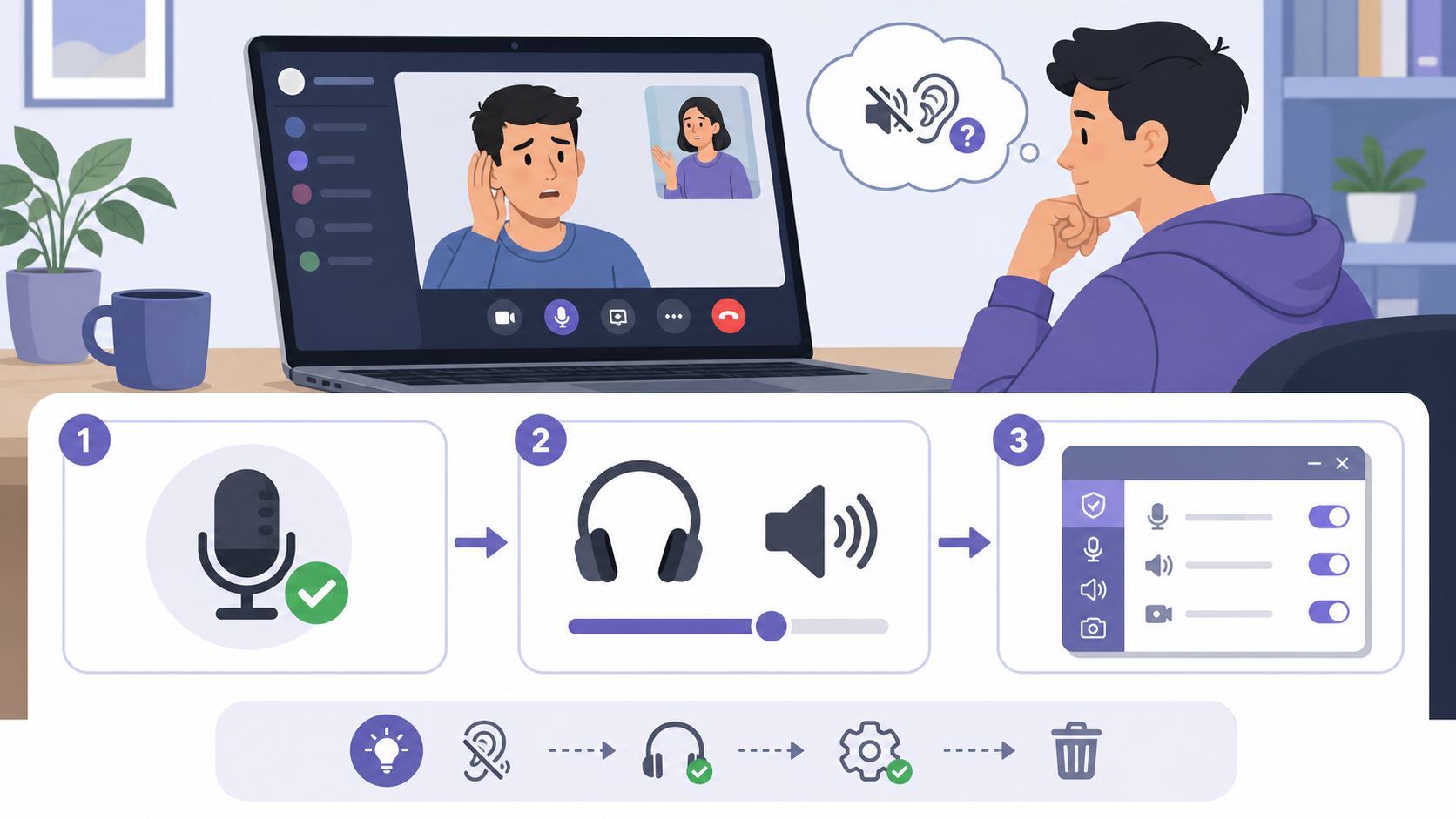
- Check mute: Make sure you did not mute yourself during the call.
- Raise volume: Use the physical volume buttons while the call is active.
- Switch audio output: If sound is going to Bluetooth headphones by mistake, switch back to phone speaker or earpiece.
- Test another app: Record a short voice memo to confirm your microphone works.
- Restart the call: A fresh connection can fix temporary routing issues.
- Restart the device: This clears stuck audio services on many phones.
If only one contact has audio problems with you, the issue may be on their device or connection. If every Viber call has the same problem, focus on your permissions, microphone, Bluetooth, or app version.
Troubleshooting Viber camera problems
Camera issues usually come from blocked permissions, another app using the camera, or a weak device connection. Try these fixes:
- Allow camera permission: Confirm camera access in your phone or computer settings.
- Close other camera apps: Video apps, meeting tools, or camera apps can sometimes hold camera access.
- Switch cameras: Try changing from front camera to rear camera and back.
- Clean the lens: Blurry video can be as simple as fingerprints on the camera.
- Turn video off and on: This can refresh the camera feed during a call.
- Update Viber: Camera bugs are often fixed in newer versions.
If your camera works in other apps but not in Viber, reinstalling Viber can help after you have checked permissions and updates. For more general tips and updates, the Viber Blog can be a useful place to continue reading.
When Viber calls are not free
Regular Viber-to-Viber calls are free, but there is an important exception. If you call a mobile or landline number outside the Viber app, that is not the same as a free app-to-app call. Viber may offer paid calling options for reaching non-Viber numbers, and pricing can vary by destination.
Before placing a call, look at the contact and call button carefully. If the person is not on Viber, you may see an option to invite them or use a paid calling service. To avoid unexpected charges, use free Viber calls only with contacts who already have Viber.
Best practices for better Viber calls
- Use a stable Wi-Fi network for video calls and long conversations.
- Keep your phone charged, especially for group video calls.
- Use headphones in noisy rooms or shared spaces.
- Turn off video if the call starts lagging.
- Ask group call members to mute when not speaking.
- Keep Viber and your operating system updated.
- Check microphone, camera, and notification permissions after reinstalling or updating the app.
Conclusion
Viber calls are a practical way to make free voice and video calls with other Viber users, whether you are calling one person or joining a group conversation. The key is to understand that the calls run over the internet, so quality depends on connection strength, device permissions, app updates, and basic audio or camera settings. If something goes wrong, start with the simple checks: internet, permissions, microphone, camera, Bluetooth, and app version. Most issues can be fixed in a few minutes.
FAQ
Are Viber calls really free?
Yes. Viber-to-Viber voice and video calls are free over Wi-Fi or mobile data. Your carrier may still charge for mobile data if you are not using Wi-Fi.
Can I make a Viber video call without Wi-Fi?
Yes, you can use mobile data for a Viber video call. For better quality and lower data use, Wi-Fi is usually recommended.
Why is my Viber call breaking up?
Choppy audio or frozen video usually means the internet connection is weak or unstable. Move closer to your router, switch networks, close bandwidth-heavy apps, or turn off video.
Why can’t people hear me on Viber?
Check that your microphone is not muted, microphone permission is enabled, and Bluetooth is not sending audio to another device. Restarting the call or phone can also help.
Can I call someone who does not have Viber?
You cannot make a free Viber-to-Viber call to someone who does not use Viber. Calling regular phone numbers may require a paid option, depending on the destination.