
To send photos, videos, files, or a voice message on Viber, open a chat, tap the media, camera, file, or microphone icon, choose what you want to share, and send it. The exact icon may look slightly different on iPhone, Android, and desktop, but the flow is the same: pick the chat, select the media type, review it if needed, then tap send. If you use the Viber app often for work or family chats, knowing the difference between sending media as a photo, video, or document can help you keep better quality and avoid failed uploads.
What You Can Send in Viber
Viber supports common media and file sharing options in one-to-one chats, group chats, and supported communities. You can send casual photos, short clips, PDFs, compressed folders, office files, and quick voice notes without leaving the conversation.
| Media type | Best for | What to check before sending |
|---|---|---|
| Photos | Images, screenshots, receipts, quick snapshots | Photo quality setting, internet speed, storage permission |
| Videos | Short clips, screen recordings, camera videos | File size, video length, Wi-Fi connection |
| Documents and files | PDFs, Word files, ZIP files, presentations | File size limit, file format, recipient access |
| Voice messages | Fast replies, spoken instructions, updates while moving | Microphone permission, background noise, recording length |
How to Send Photos on Viber
Sending Viber photos is straightforward, but there are two common ways to do it: send from your gallery or take a new photo from inside the chat.
Send a photo from your phone gallery
- Open Viber and choose the chat where you want to send the image.
- Tap the photo or gallery icon near the message box.
- Select one or more photos from your device.
- Add a caption if you want to explain the image.
- Tap the send button.
Take and send a new photo
- Open the chat.
- Tap the camera icon.
- Take the photo.
- Review it, add text or a caption if available, then send.
If the image looks too compressed, check your Viber media settings. In many versions, you can adjust photo quality under Settings, then Media and Storage or a similarly named menu. Higher quality is better for documents, product photos, and screenshots with text, while lower quality is useful when your connection is slow.
How to Send Videos on Viber
You can send videos from your gallery or record a clip directly inside Viber. For short clips, the regular video option is usually enough. For large or high-resolution videos, sending the video as a file may preserve more detail, depending on your device and app version.
Send a video from your gallery
- Open the conversation in Viber.
- Tap the gallery or media icon.
- Select the video you want to share.
- Trim or preview it if Viber offers editing options.
- Tap send and keep the app open until the upload starts properly.
Send a video as a file
If quality matters, use the file attachment option instead of the normal media picker. This is helpful for client clips, training videos, or screen recordings where text must stay readable.
- Open the chat.
- Tap the plus, attachment, or file icon.
- Choose File or Document.
- Browse to the video file on your device.
- Select it and send.
Tip: Large videos upload more reliably on Wi-Fi. If the upload fails on mobile data, connect to a stable network and try again.
How to Send Documents and Files on Viber
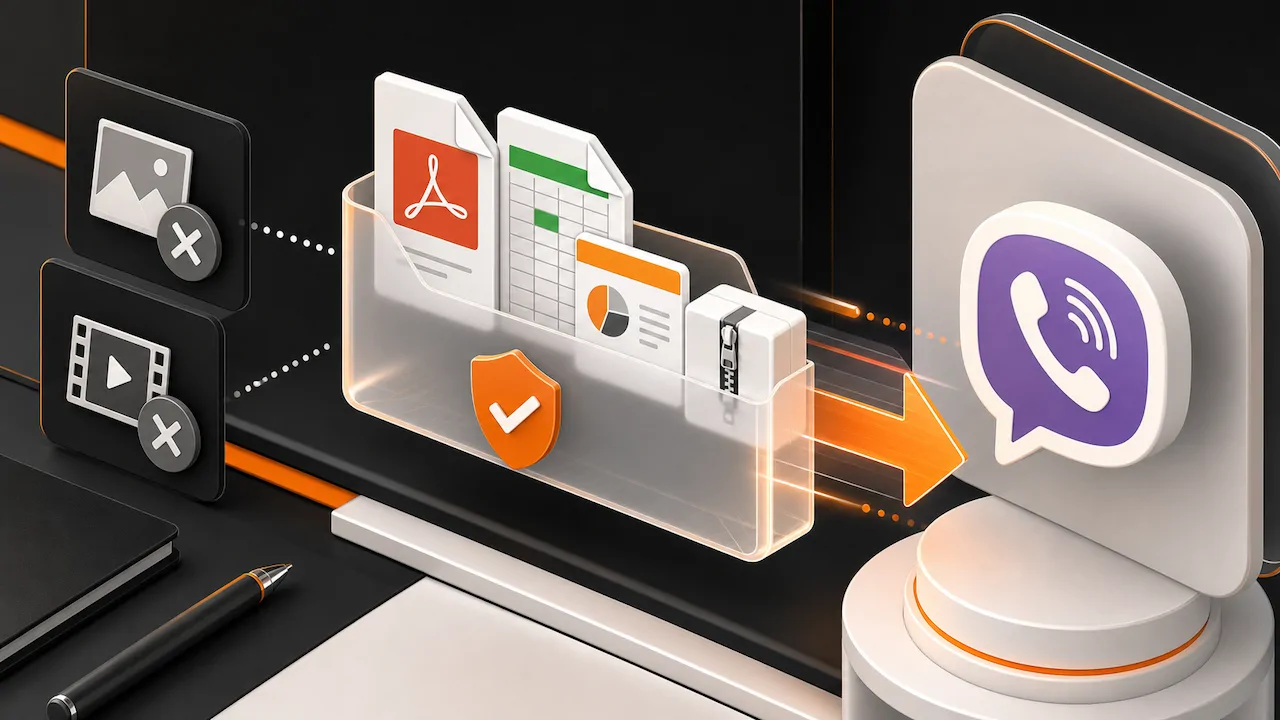
The Viber send files feature is useful when you need to share PDFs, spreadsheets, presentations, ZIP archives, or other documents. It is often the better choice when you do not want Viber to treat the item as a compressed photo or video.
Send a file on Android or iPhone
- Open the Viber chat.
- Tap the attachment, plus, or file icon next to the message field.
- Select File, Document, or Browse, depending on your device.
- Choose the document from your phone storage, cloud folder, or file manager.
- Tap send.
Send a file on Viber desktop
- Open Viber on your computer.
- Select the conversation.
- Click the attachment or file icon, or drag the file into the chat window.
- Confirm the file and send it.
Viber commonly supports file sharing up to 200 MB per file. Limits can vary by app version, platform, and local settings, so if a file is rejected, check its size first. For anything larger, compress the file, split it into smaller parts, or use a cloud link instead.
How to Send a Viber Voice Message
A Viber voice message is best when typing is inconvenient or when tone matters. It is faster than a call and easier for the recipient to play when they have time.
- Open the chat where you want to send the voice note.
- Press and hold the microphone icon near the message box.
- Start speaking clearly.
- Release the microphone button to send.
- If your version supports it, slide to cancel before releasing if you do not want to send the recording.
Some versions also let you lock recording mode, so you do not have to keep holding the microphone. If you do not see the microphone icon, tap the message field or check whether another input mode is active.
Photo and Video Quality Settings to Know
Viber may compress photos and videos to make sending faster and reduce data use. That is convenient for casual sharing, but it can make text, fine details, and high-resolution media look less sharp.
| Goal | Recommended method | Why it helps |
|---|---|---|
| Fast sharing | Send as a normal photo or video | Uploads quickly and uses less data |
| Better image clarity | Use higher photo quality settings if available | Keeps more detail in photos and screenshots |
| Preserve original file | Send as File or Document | Reduces unwanted media compression |
| Send on weak connection | Lower quality or use Wi-Fi | Reduces failed uploads and long waiting times |
To check quality options, open Viber settings and look for Media and Storage, Photo Quality, or similar wording. The names can change slightly between iOS, Android, and desktop versions. If you are setting up the app on a new device, use the official download viber page to get the latest version before troubleshooting media issues.
Viber File Size Limits and Practical Workarounds
The most common file size limit users run into is around 200 MB per file. This is enough for many PDFs, photos, and short videos, but large presentations, long recordings, and high-resolution videos can exceed it.
- If a file is too large: compress it into a smaller ZIP file or reduce the video resolution.
- If a video is slightly over the limit: trim unnecessary parts before sending.
- If quality is important: send the media as a document instead of a regular photo or video.
- If the file must stay unchanged: share a trusted cloud storage link and mention what the recipient should download.
How to Fix Failed Uploads on Viber
Failed uploads usually come from network problems, missing permissions, low storage, outdated app versions, or files that exceed Viber’s supported limits. Work through the checks below in order.
1. Check your connection
- Switch from mobile data to Wi-Fi.
- Turn airplane mode on and off.
- Move closer to the router if the upload stalls.
2. Confirm app permissions
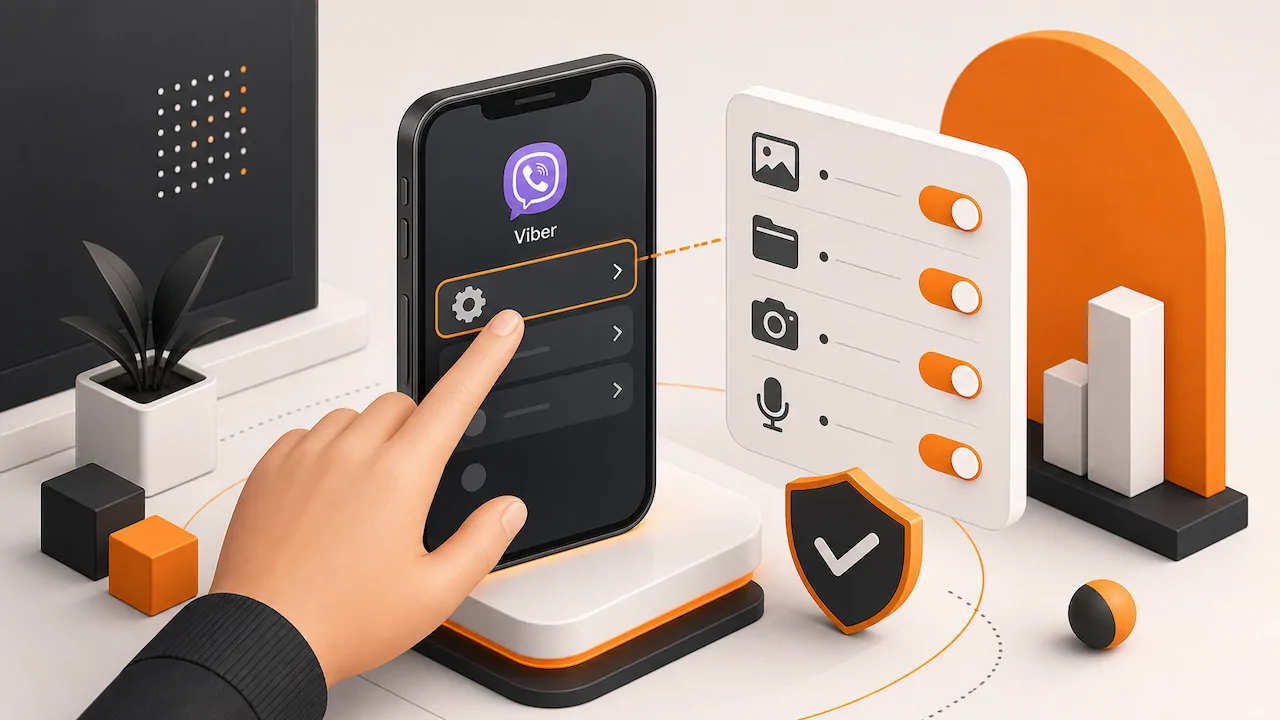
Viber needs permission to access photos, files, camera, and microphone. On your phone, open system settings, find Viber, and allow the relevant permissions.
3. Check the file size and format
If a file is too large or uses an unusual format, Viber may fail to upload it. Rename the file with a standard extension, compress it, or export it to a common format such as PDF, JPG, MP4, or ZIP.
4. Free up device storage
Low storage can interrupt media processing before the upload even begins. Delete unnecessary downloads, clear old media, or move files to cloud storage.
5. Update or restart Viber
Close Viber completely and reopen it. If the problem continues, update the app. A fresh version often fixes media picker issues, upload bugs, and permission conflicts.
Quick Best Practices for Sharing Media on Viber
- Use photos for quick visual sharing and files for original quality.
- Keep videos short when sending over mobile data.
- Use voice messages for short updates, not long lectures.
- Check permissions after reinstalling or changing phones.
- Ask the recipient to confirm large files downloaded correctly.
FAQ
How do I send multiple photos on Viber?
Open a chat, tap the gallery icon, select multiple photos, and tap send. If you need better quality, check your photo quality settings before sending.
Why can’t I send files on Viber?
The file may be too large, your connection may be unstable, or Viber may not have storage permission. Check the file size, switch to Wi-Fi, and confirm app permissions.
Does Viber reduce photo and video quality?
Viber may compress media to make uploads faster. For better quality, use higher photo quality settings if available or send the item as a file.
What is the Viber file size limit?
Viber commonly allows files up to about 200 MB. If your file is larger, compress it, trim it, split it, or send a cloud download link.
How do I cancel a Viber voice message before sending?
While recording, slide to cancel if your app version supports that gesture. If the message has already been sent, you can delete it from the chat afterward.