
Viber stickers, GIFs, and emojis are built-in chat tools that let you react, joke, celebrate, or answer quickly without typing a full message. In most chats, you can find them from the sticker or emoji icon near the message box, then choose a sticker pack, search for a GIF, or tap an emoji to send it. You can also download free and paid sticker packs from the Viber sticker market, manage the packs you use most, and remove the ones you no longer want.
If you are setting up the Viber app for the first time, make sure you are using the latest version. Older versions may show a slightly different layout, and some sticker packs or GIF features may not appear until the app is updated.
Stickers, GIFs, and Emojis in Viber: What Is the Difference?
All three options make chats more expressive, but they work in different ways. Knowing the difference helps you choose the right one quickly.
| Feature | Best for | How it appears in chat | Can you download more? |
|---|---|---|---|
| Viber stickers | Big reactions, characters, jokes, seasonal messages | Large illustrated image sent as a standalone message | Yes, through sticker packs |
| Viber GIFs | Short animated reactions, memes, funny moments | Animated image, usually searched by keyword | No pack download needed; search and send |
| Viber emoji | Quick emotion, simple tone, short replies | Small icon inside or beside text | Emoji set depends on your keyboard and app support |
How to Send Viber Stickers in a Chat
Sending a sticker is usually the fastest way to add personality to a message. The exact icons may vary a little between iPhone, Android, and desktop, but the process is similar.
- Open a one-to-one chat, group chat, or community conversation in Viber.
- Tap the sticker icon near the message field. It may appear as a face, sticker, or small square icon depending on your device.
- Browse the sticker packs shown in your sticker tray.
- Tap a sticker once to send it immediately.
- If you want a different pack, swipe through the pack icons or open the sticker market to add more.
One small tip: stickers are often sent instantly when tapped. If you are browsing in a work or group chat, take a second to make sure you are in the right conversation before tapping.
How to Find and Download Viber Sticker Packs
Viber has a sticker market where you can browse free and paid sticker packs. Free packs are usually available to download with one tap, while paid packs may require purchase confirmation through your device’s app store or payment method.
Download free Viber sticker packs
- Open Viber and go into any chat.
- Tap the sticker icon beside the message box.
- Look for the plus icon, store icon, or sticker market option.
- Browse categories such as popular, new, seasonal, cute, funny, or branded packs.
- Choose a free pack and tap Download or Add.
- Return to your chat and check your sticker tray for the new pack.
Get paid Viber sticker packs
Some packs may be marked with a price. These are usually premium sticker packs created around special themes, artists, brands, or characters.
- Open the sticker market from the sticker panel.
- Select the paid sticker pack you want.
- Review the price before confirming.
- Complete the purchase through your app store account or available payment method.
- After payment, the pack should appear in your sticker tray.
Before buying a paid pack, preview the stickers if the option is available. This helps you avoid paying for a pack that only has one or two stickers you would actually use.
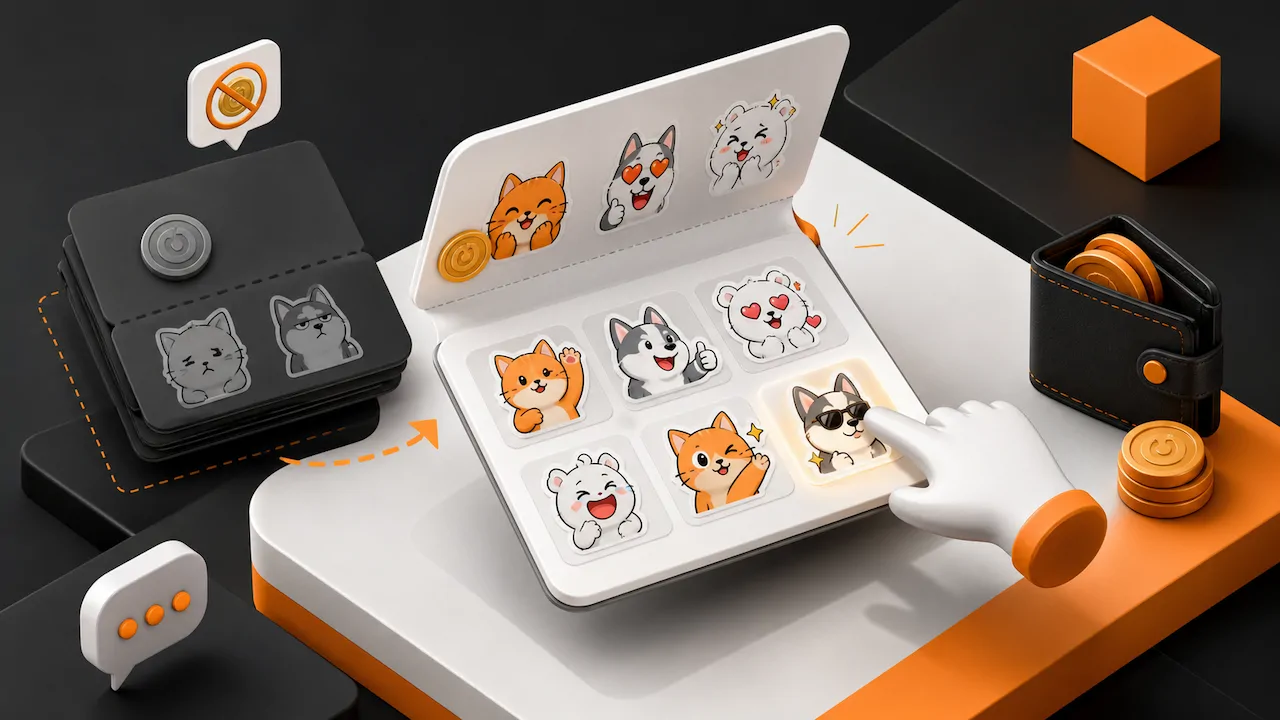
How to Manage Viber Sticker Packs
After a while, your sticker tray can get crowded. Managing packs makes it easier to find your favorites during a real conversation.
Reorder sticker packs
- Open a chat and tap the sticker icon.
- Open the sticker settings, manage option, or pack list.
- Press and hold a pack, then drag it into the order you prefer.
- Move your most-used packs to the front of the tray.
Hide or remove sticker packs
- Open the sticker panel in a chat.
- Go to sticker settings or the manage sticker packs area.
- Find the pack you no longer want to see.
- Tap Remove, Delete, Hide, or the minus icon, depending on your app version.
- Confirm if Viber asks you to approve the change.
Removing a sticker pack usually removes it from your tray, not from past chats. Stickers you already sent normally remain visible in the conversation history.
How to Send Viber GIFs
Viber GIFs are useful when a sticker feels too specific and an emoji feels too small. You can search for an animated reaction and send it directly from the chat screen.
- Open the chat where you want to send a GIF.
- Tap the GIF option, which may appear near the sticker or media tools.
- Use the search bar to type a word such as happy, wow, sorry, birthday, or laughing.
- Browse the results and tap the GIF you want.
- Confirm or send it, depending on your device and Viber version.
For better results, search with simple words. A search like “happy dance” usually works better than a long sentence. If results do not load, check your internet connection and update the app.
How to Use Viber Emoji
Viber emoji are the simplest option for quick replies. You can add them inside a typed message or send them on their own.
- Open a chat in Viber.
- Tap the message field.
- Open the emoji keyboard on your phone or the emoji panel in Viber.
- Choose the emoji you want.
- Add text if needed, then send the message.
Emojis can look slightly different across phones and operating systems. If a friend’s emoji looks different from yours, that is usually due to device rendering, not a Viber error.
How to Remove Stickers, GIFs, or Emoji from a Message
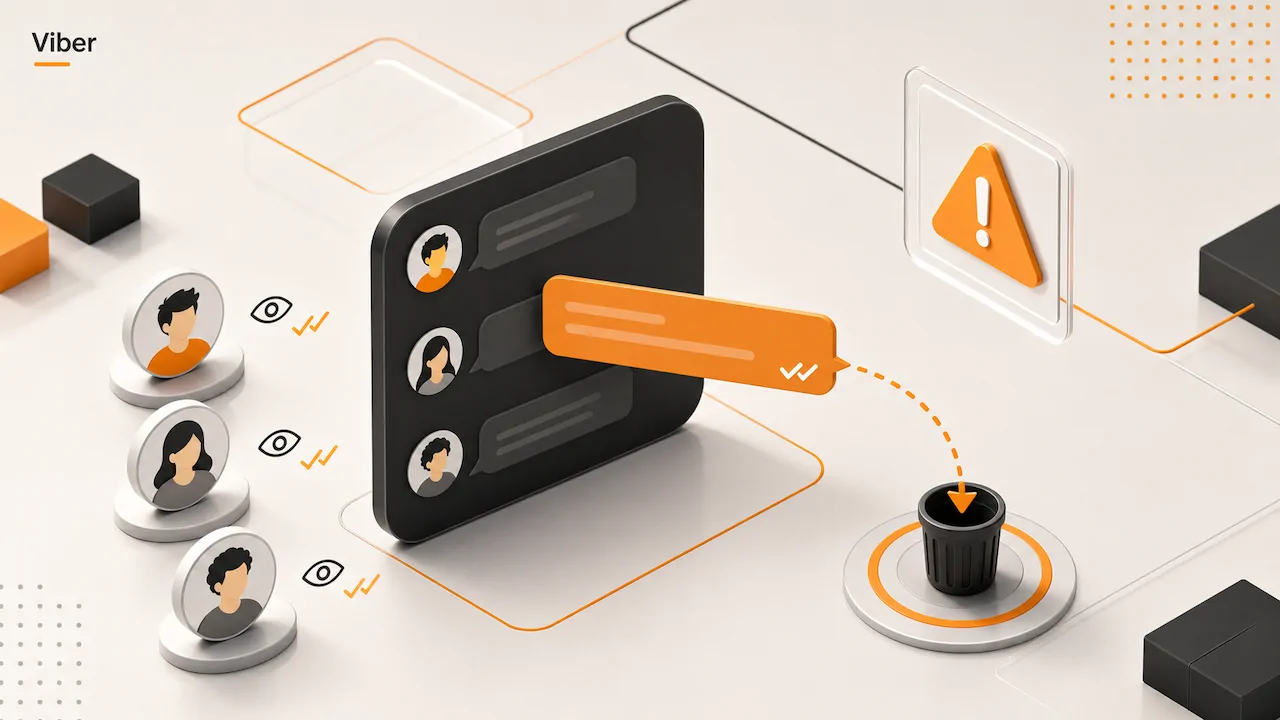
If you sent the wrong sticker, GIF, or emoji, you may be able to delete the message. Viber usually offers options such as deleting for yourself or deleting for everyone, depending on the chat type, timing, and app version.
- Press and hold the sticker, GIF, or message containing the emoji.
- Choose Delete.
- Select Delete for myself or Delete for everyone if available.
- Confirm the action.
Use “Delete for everyone” carefully. Other people may have already seen the message, especially in active group chats.
Troubleshooting: Why Stickers or GIFs May Not Work
If Viber stickers or GIFs are missing, slow, or not sending, the cause is usually simple. Try these checks first.
- Update Viber: New sticker market features may require the latest app version. If needed, you can download Viber again from the official download page.
- Check your connection: GIF search and sticker downloads need internet access.
- Restart the app: Closing and reopening Viber can refresh the sticker tray.
- Check storage: If your phone is low on storage, sticker packs may fail to download.
- Review regional availability: Some paid or branded sticker packs may not be available in every country.
- Sign in to the correct account: Purchases and downloaded packs may be linked to the account or device used at the time.
Practical Tips for Better Sticker and GIF Use
- Keep a small favorite set: Too many packs make it harder to find the right sticker quickly.
- Use GIFs when motion matters: A short animated reaction can be clearer than several messages.
- Use emojis for tone: A simple smile, thumbs-up, or heart can prevent a short message from sounding cold.
- Be careful in professional chats: Funny stickers may not always fit business conversations.
- Clean up old packs: Removing unused packs keeps the sticker tray fast and tidy.
For more tips on using Viber features in everyday messaging, the Viber Blog is a useful place to explore guides and updates.
Conclusion
Viber stickers, Viber GIFs, and Viber emoji are easy to use once you know where each tool lives. Stickers are best for bold visual reactions, GIFs are great for animated moments, and emojis are ideal for quick tone and emotion. The most useful habit is simple: download only the sticker packs you actually use, keep your favorites near the front, and remove old packs when your tray feels crowded.
FAQ
Where do I find Viber stickers?
Open any Viber chat and tap the sticker icon near the message box. From there, you can use your current packs or open the sticker market to download more.
Are Viber sticker packs free?
Many Viber sticker packs are free, but some are paid. Paid packs usually show a price before you download or purchase them.
How do I delete sticker packs on Viber?
Open the sticker panel, go to sticker settings or manage packs, select the pack you do not want, and choose remove, hide, or delete.
Can I send GIFs in Viber chats?
Yes. Open a chat, choose the GIF option, search by keyword, and tap the GIF you want to send.
Why are my Viber GIFs not loading?
GIFs may fail to load because of a weak internet connection, an outdated app, temporary service issues, or low device storage. Updating Viber and restarting the app usually helps.