
To install Viber, download the official app on your phone first, verify your phone number, then set up Viber for PC or Mac by linking the desktop app to your activated mobile account. A safe Viber download should come from the official app store on mobile or the official desktop download page, because Viber relies on phone number verification and device pairing to protect your account.
Before You Install Viber
Viber works a little differently from a simple standalone desktop chat app. Your phone number is your account ID, and the mobile app is the main starting point. Once your number is verified on Android or iPhone, you can install and link the desktop version on Windows or Mac.
Before you begin, make sure you have:
- An active phone number that can receive SMS or phone calls.
- A stable internet connection on your phone and, if needed, your computer.
- Access to Google Play, the App Store, or the official Viber Download page.
- Enough storage space for the app and future media files.
- Your phone nearby if you plan to activate Viber on Windows or Mac.
Tip: Install Viber on your phone first. The desktop app normally needs to be linked to an active mobile account by scanning a QR code.
Viber Installation Options by Device
| Device | Where to Download | Verification Needed | Best For |
|---|---|---|---|
| Android | Google Play or official download page | Phone number via SMS or call | Primary mobile setup |
| iPhone | Apple App Store | Phone number via SMS or call | Primary mobile setup |
| Windows PC | Official desktop download page | QR code linking with mobile app | Typing, calls, and chats on a computer |
| Mac | Official desktop download page | QR code linking with mobile app | Desktop messaging on macOS |
How to Install Viber on Android
Android installation is usually the fastest route because the app is available through Google Play in supported regions. If you are installing for the first time, keep your SIM card active and your phone connected to the internet.
Step-by-step Android setup
- Open Google Play on your Android phone.
- Search for Viber and check that the publisher is the official Viber app provider.
- Tap Install and wait for the download to finish.
- Open the app and tap Continue.
- Select your country code and enter your phone number.
- Confirm the number carefully before requesting the verification code.
- Enter the SMS code, or use the call option if SMS does not arrive.
- Add your name and optional profile photo.
- Allow only the permissions you want to use, such as contacts, microphone, camera, photos, and notifications.
Contacts permission helps Viber show which people in your address book already use the app. Microphone and camera permissions are needed for voice and video calls. Photo or media access is used when you send images, videos, or files.
How to Install Viber on iPhone
On iPhone, Viber is installed from the App Store. The setup flow is similar to Android, but iOS may ask for permissions in separate prompts when you first use certain features.
Step-by-step iPhone setup
- Open the App Store on your iPhone.
- Search for Viber.
- Tap Get, then confirm with Face ID, Touch ID, or your Apple ID password if requested.
- Open Viber after installation.
- Choose your country code and enter your phone number.
- Confirm the number and wait for the verification code.
- Enter the code sent by SMS, or request a verification call if available.
- Set up your profile name and photo.
- Review iOS permission prompts as they appear.
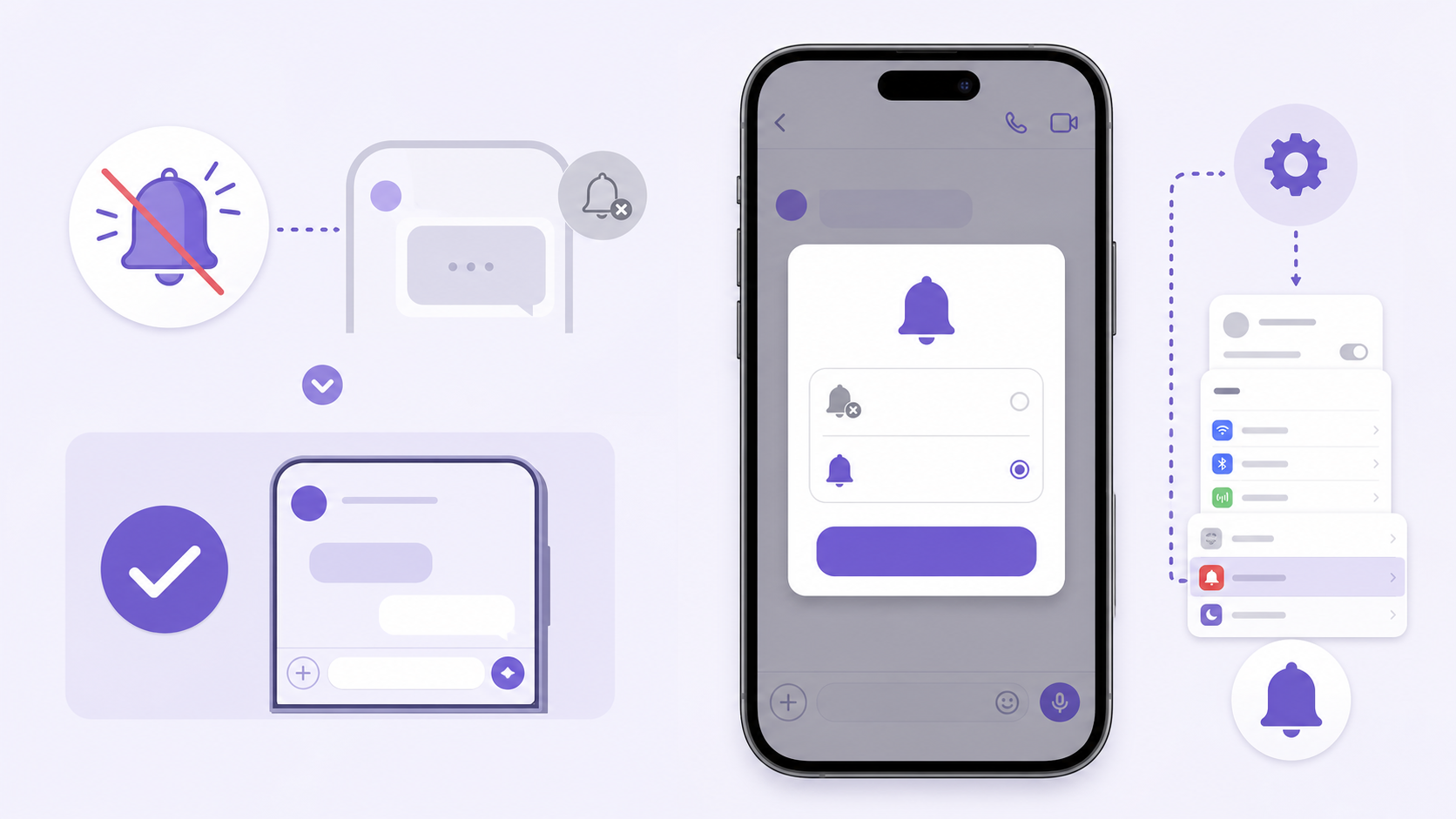
If your iPhone blocks notifications during setup, you can still use Viber, but you may miss incoming message alerts. You can change this later in iPhone Settings under Notifications.
How Phone Number Verification Works
Viber uses your phone number to create and identify your account. During setup, the app sends a verification code by SMS or offers a phone call option in some cases. You must enter that code in the app before your account becomes active.
For a smooth verification process:
- Enter the full number with the correct country code.
- Turn off airplane mode and make sure your SIM can receive messages or calls.
- Avoid requesting too many codes in a short time, as this may trigger a temporary delay.
- Do not share your verification code with anyone. Viber support will not need your code to help you.
If you are moving to a new phone, back up your chat history first if you want to restore it. The exact backup options can vary by device and cloud account.
How to Install Viber for PC on Windows
Viber for PC is useful if you prefer typing on a keyboard, making calls from your desk, or keeping conversations open while working. However, the Windows app normally needs an already activated Viber account on your phone.
Step-by-step Windows setup
- On your Windows computer, go to the official Viber desktop download page.
- Download the Windows installer.
- Open the downloaded file and follow the installation prompts.
- Launch Viber on your PC.
- The desktop app will show a QR code.
- Open Viber on your phone.
- Use the built-in QR scanner when prompted, or open the desktop linking option inside the mobile app.
- Scan the QR code on your computer screen.
- Wait for chats and contacts to sync.
If your workplace computer restricts software installation, you may need administrator permission. Also check that your Windows version is supported by the current desktop app before downloading.
How to Install Viber on Mac
The Mac version follows the same basic logic as Windows: download the desktop app, install it, then link it to your verified mobile account. Keep your iPhone or Android phone nearby for QR code scanning.
Step-by-step Mac setup
- Visit the official desktop download page from your Mac.
- Download the macOS version of Viber.
- Open the downloaded file.
- Drag Viber to the Applications folder if prompted.
- Open Viber from Applications.
- Confirm any macOS security prompt if the app was downloaded from the official source.
- Scan the QR code using Viber on your phone.
- Allow time for your chats and contacts to sync.
If macOS blocks the app from opening, check your security settings and confirm that you downloaded the installer from a trusted source. Avoid random installer mirrors, because modified desktop apps can put your account and messages at risk.
Which Permissions Does Viber Ask For?
Viber may ask for several permissions depending on your device and the features you use. You do not have to allow everything at once, but some features will not work without the related permission.
| Permission | Why Viber Uses It | Can You Skip It? |
|---|---|---|
| Contacts | Find people you know who already use Viber | Yes, but contact discovery is limited |
| Microphone | Voice messages and voice calls | Yes, until you need calling features |
| Camera | Video calls, photos, and QR code scanning | Yes, but desktop linking may need camera access on mobile |
| Photos or media | Send and save images, videos, and files | Yes, but media sharing is limited |
| Notifications | Message and call alerts | Yes, but you may miss updates |
Common Viber Install Problems and Fixes
Verification code does not arrive
- Check that your country code and phone number are correct.
- Make sure your phone can receive SMS or calls.
- Wait a few minutes before requesting another code.
- Try the call verification option if it appears.
- Disable spam SMS filtering temporarily if it blocks unknown senders.
Viber download fails or gets stuck
- Switch between Wi-Fi and mobile data to test the connection.
- Free up storage space on your device.
- Restart the phone or computer and try again.
- Update Google Play, the App Store, Windows, or macOS if the installer requires it.
- Use the official Viber source instead of third-party download sites.
Desktop QR code will not scan
- Increase your computer screen brightness.
- Clean your phone camera lens.
- Move the phone closer or farther away until the QR code is clear.
- Restart both the phone app and desktop app.
- Confirm that Viber is already activated on your phone.
Chats are not syncing to desktop
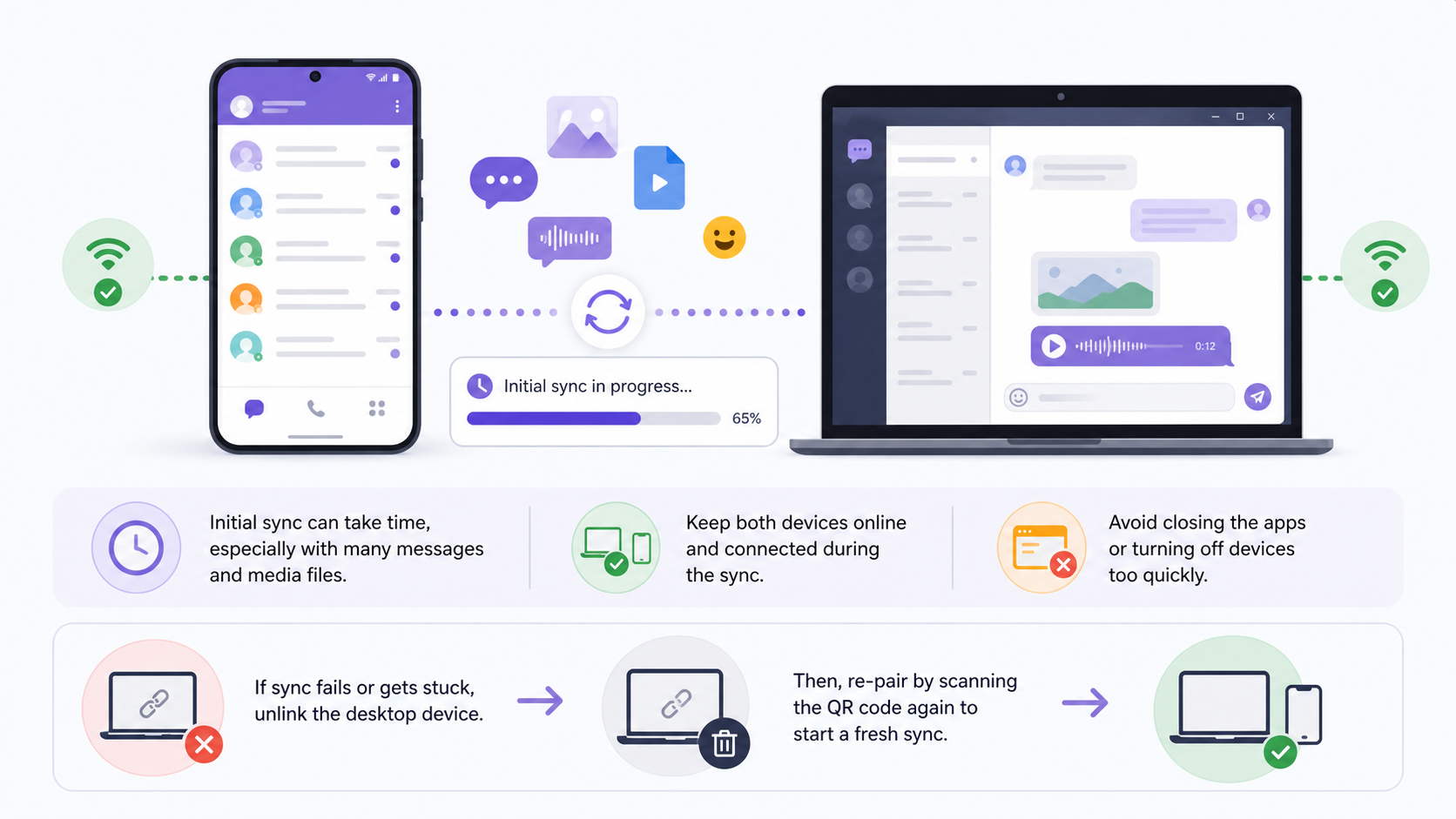
Initial sync can take time, especially if you have many conversations or media files. Keep both devices online and avoid closing the apps too quickly. If sync still fails, unlink the desktop device and repeat the QR code pairing process.
Safety Tips for Installing Viber
Because messaging apps contain personal conversations, contacts, and media, installation safety matters. A few simple habits can prevent most account and privacy problems.
- Download only from trusted official sources or recognized app stores.
- Do not install modified or unofficial Viber APK files.
- Never share your SMS verification code.
- Review permissions instead of tapping Allow automatically.
- Keep your phone and desktop app updated.
- Check official update notes or practical guides on the Viber Blog if you run into version-specific issues.
Final Checklist
If you want the quickest path, install Viber on Android or iPhone first, verify your number, then install Viber for PC or Mac and scan the desktop QR code from your phone. Most installation issues come from incorrect phone numbers, blocked verification messages, unsupported operating systems, weak internet connections, or downloading from the wrong source.
Once setup is complete, test three things: send a message, make a short call, and check notifications. That confirms the app, permissions, and account linking are working as expected.
FAQ
Can I install Viber on my PC without a phone?
In most cases, no. Viber for PC needs to be linked to an active Viber account on your phone by scanning a QR code.
Why is my Viber verification code not coming?
The most common causes are an incorrect country code, poor mobile signal, SMS filtering, or too many code requests. Check the number, wait a few minutes, and try the call option if available.
Is Viber free to download and install?
Yes, the Viber app is free to download and install. Standard data charges from your mobile carrier or internet provider may still apply.
Can I use the same Viber account on Android and iPhone?
You can move your account to a new phone number or device, but the main mobile account is tied to one phone setup at a time. Back up chats before switching devices if you want to keep your history.
Why does Viber ask for contacts, camera, and microphone access?
Contacts help find people you know, the camera is used for video calls and QR scanning, and the microphone is required for calls and voice messages. You can manage these permissions in your device settings.