
You can change Viber number from Viber account settings by going to More, opening Settings, choosing Account, and selecting Change phone number. If you keep the same phone, Viber updates your account to the new number and keeps your existing chat history on that device. If you are also moving to a new phone, back up your chats first, change the number from the old phone, then activate and restore Viber on the new phone.
The exact flow matters because Viber uses your phone number as your account ID. A rushed switch can leave you without access to old messages, especially if you no longer have the old phone or you did not create a backup before activating the new device.
Before You Change Your Viber Phone Number
Before you open the setting, take a few minutes to check the basics. This is the part that prevents most problems.
- Make sure the new number can receive SMS or calls. Viber will send a verification code to confirm ownership.
- Update the Viber app. Using the latest version reduces activation and backup errors.
- Back up your chat history. This is essential if you are moving to another phone.
- Check your cloud backup account. Android backups usually rely on Google Drive; iPhone backups use iCloud.
- Keep the old phone available. Do not erase it until the new number and, if needed, the new phone are working.
- Stay on a stable internet connection. Verification and backup restoration can fail on weak networks.
Important: Viber messages are not simply stored on Viber’s servers for you to download later. If you care about old chats, create a backup before changing devices or reinstalling the app.
Same Phone vs New Phone: What Is Different?
The right option depends on what you are changing. Use this table to choose the safer path.
| Situation | What to choose | What happens to chats | What to do first |
|---|---|---|---|
| You are keeping the same phone and only changing the number | Change phone number | Existing chats normally stay on the same device | Still make a backup as a precaution |
| You are changing both the number and the phone | Change phone number and prepare for new device | Chats need to be backed up and restored on the new phone | Back up chats on the old phone before activation |
| You already activated Viber on the new phone without backing up | Recovery may be limited | Old chats may not be recoverable | Check whether a previous cloud backup exists |
How to Back Up Viber Before Changing Your Number
If you are only changing your number on the same phone, Viber usually keeps the chats already stored on that phone. Even so, a backup is a sensible safety step. If you are moving to a new phone, it is not optional.
Back up Viber on Android
- Open Viber.
- Tap More.
- Go to Settings.
- Tap Account.
- Choose Viber Backup.
- Connect the correct Google account if asked.
- Tap Back up and wait until it finishes.
Back up Viber on iPhone
- Open Viber.
- Tap More.
- Open Settings.
- Go to Account.
- Select Viber Backup.
- Make sure iCloud Drive is enabled for Viber.
- Tap Back up now and wait for completion.
For large chat histories, stay connected to Wi-Fi and keep the app open until the backup is done. If you have important photos or videos in chats, check your Viber backup settings and your phone gallery settings, because media handling can vary by device and configuration.
How to Change Viber Number on the Same Phone
Use this method when your device stays the same and only your SIM or phone number changes.
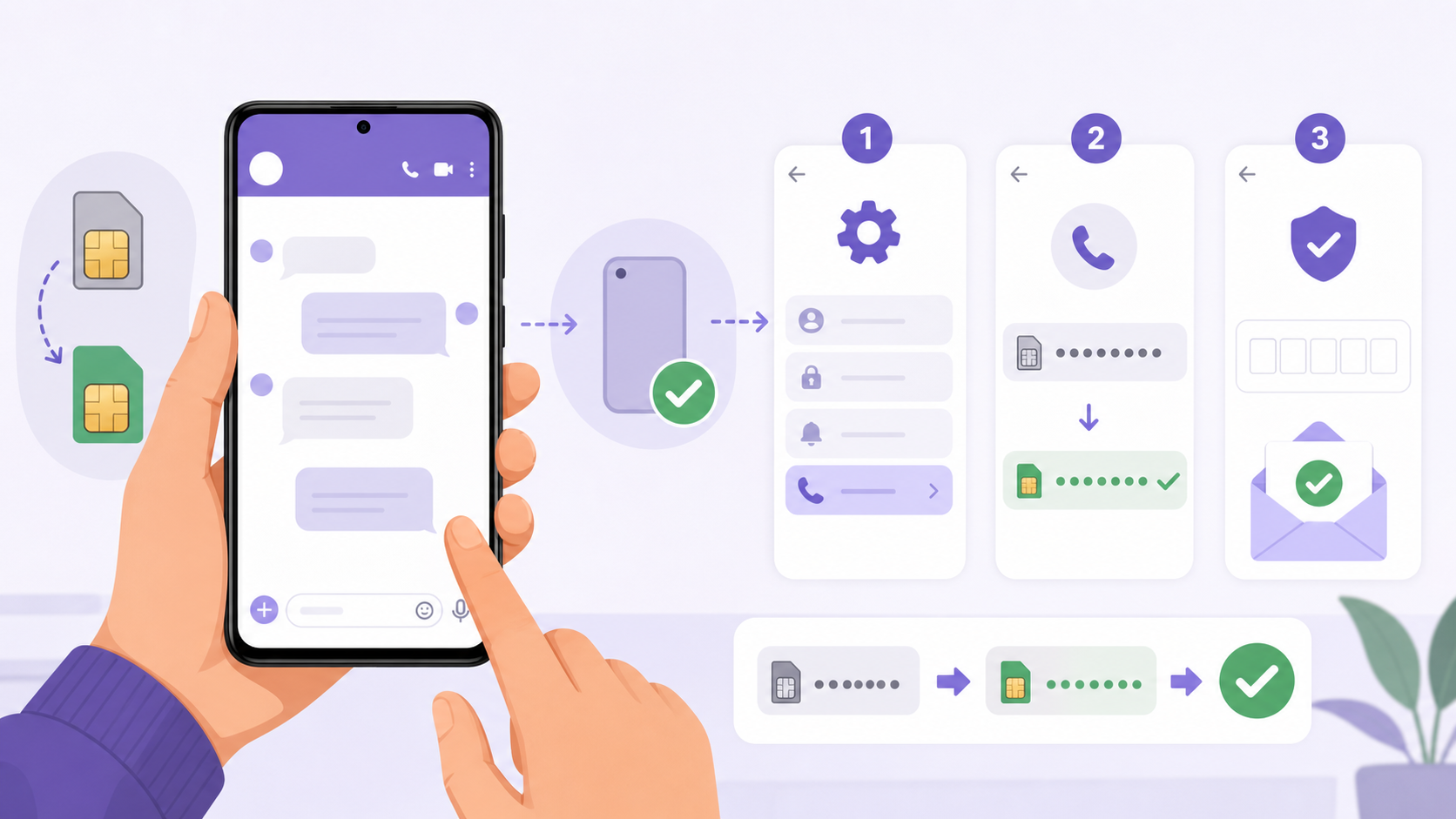
- Insert and activate the new SIM, or make sure the new number is available on your phone.
- Open Viber.
- Tap More.
- Go to Settings.
- Tap Account.
- Select Change phone number.
- Choose the option for changing the phone number on this device.
- Enter your new phone number, including the correct country code.
- Confirm the number when Viber asks you to review it.
- Enter the verification code sent by SMS or received through a call.
After verification, your Viber account is linked to the new number. Your chats, groups, and account settings should remain on the phone, because you have not changed devices.
How to Change Viber Number When Moving to a New Phone
If you are changing your Viber phone number and moving to a new device, do the work from the old phone first. This gives Viber a chance to update the account and helps protect your chat history.
- On the old phone, update Viber and create a fresh chat backup.
- Open Viber on the old phone.
- Tap More, then Settings.
- Go to Account.
- Choose Change phone number.
- Select the option that says you are changing both the phone number and the phone.
- Enter and verify the new phone number.
- Once the number is changed, install Viber on the new phone. If needed, you can download Viber again before activation.
- Activate Viber on the new phone using the new number.
- When prompted, restore your chat backup from Google Drive or iCloud.
Try to use the same mobile platform when restoring backups. Moving from Android to Android or iPhone to iPhone is usually more straightforward. Cross-platform moves can be limited because Android and iPhone use different cloud backup systems.
What Happens After You Change Your Viber Number?
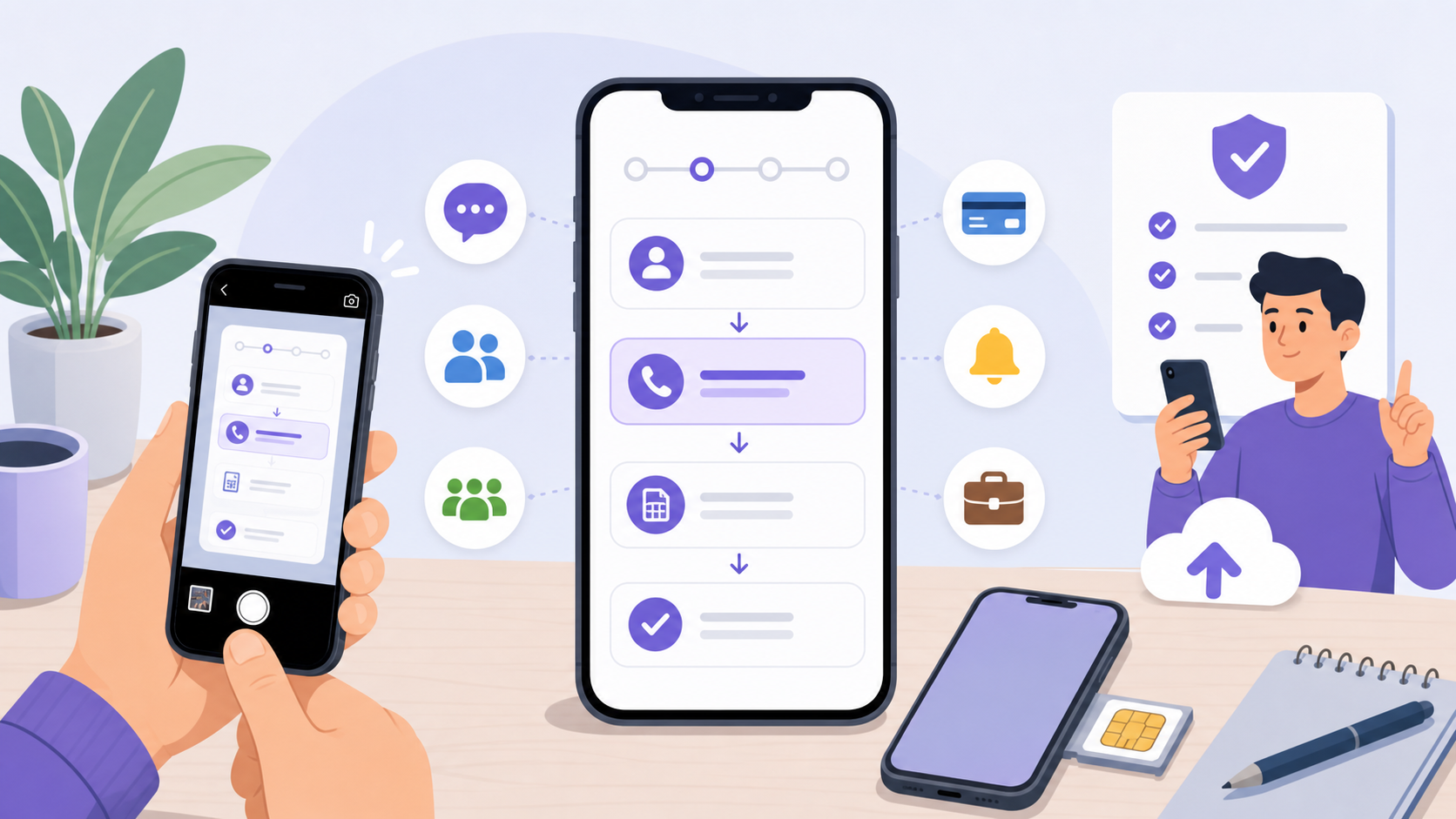
Changing your number does not create a completely new Viber identity if you use the built-in change number tool correctly. It updates the number attached to your current account.
Your chats
On the same phone, your existing chats normally stay in place. On a new phone, chats depend on a successful backup and restore. Messages that were never backed up may not transfer.
Your contacts
Viber syncs with your phone’s address book. People who have your new number saved may see you under that number. Your existing Viber contacts may also be informed that your number changed, depending on their app version and settings.
Your groups and communities
You should remain in your groups and communities when you change the number through Viber account settings. Your profile remains associated with the updated number rather than starting over as a new account.
Your stickers, subscriptions, and account details
Most account-linked items should remain available when the change is completed properly. Still, if you have paid items, subscriptions, or business-related use, take screenshots of important account details before switching.
Common Problems and How to Avoid Them
- You cannot receive the code: Check the country code, make sure the number is active, and try the call option if SMS does not arrive.
- The backup is not visible: Confirm you are signed in to the same Google or iCloud account used to create the backup.
- Chats did not restore: Make sure you restored during activation. If you skip restoration, you may need to reinstall and activate again to see the restore prompt.
- You changed phones too early: If the old phone still has Viber and a backup, return to it and create a fresh backup before trying again.
- You moved between Android and iPhone: Backup restoration may not work the same way across platforms, so plan this move carefully.
When You Should Not Change the Number Yet
Wait before changing your number if you cannot access the new SIM, your cloud backup is failing, or you are not sure which Google or iCloud account holds your Viber backup. It is also better to pause if you are traveling and may lose access to SMS verification.
If you are setting up Viber from scratch on another device, make sure you are using the official Viber app and not an unofficial installer. Account activation depends on secure number verification, so the source of the app matters.
Final Checklist
- New phone number is active and can receive verification.
- Viber is updated on the old phone.
- Chat backup has completed successfully.
- You know which cloud account stores the backup.
- You have not erased the old phone yet.
- You are choosing the correct option: same phone or new phone.
The safest approach is simple: back up first, change the Viber phone number from account settings, verify the new number, and only then move to a new device if needed. That order gives you the best chance of keeping your conversations, groups, and account details intact.
FAQ
Can I change my Viber number without losing chats?
Yes, if you change the number on the same phone, your chats normally stay on the device. If you move to a new phone, you need to back up and restore your chats.
Will my Viber contacts know I changed my number?
Viber may notify existing contacts that your number has changed, and people who save your new number may see your updated profile. Contact visibility can also depend on their address book and app settings.
Do I need the old number to change my Viber phone number?
You mainly need access to the new number for verification. However, keeping the old phone available is strongly recommended until the change and any chat transfer are complete.
Can I change Viber number after installing Viber on a new phone?
It is better to change the number from the old phone first, especially if you want to keep chats. Activating on a new phone before backing up may make old messages harder or impossible to restore.
Can I restore Viber chats from Android to iPhone?
Viber backups usually depend on Google Drive for Android and iCloud for iPhone. Because of that, restoring chats across Android and iPhone may be limited compared with restoring on the same platform.