
If Viber is not working, start with the basics: check your internet connection, restart the app, update Viber, and make sure your phone has the right permissions enabled. Most Viber connection problems, failed calls, and messages not sending are caused by unstable Wi-Fi or mobile data, an outdated app version, low device storage, background restrictions, or temporary account limitations.
The fastest way to fix the issue is to identify the exact symptom first. A message stuck on sending is not always the same problem as a failed call or an app that keeps crashing. The guide below walks through the most common causes and the fixes that usually work.
Quick checklist before deeper troubleshooting
Before changing advanced settings, run through these simple checks. They solve a large share of Viber problems in a few minutes.
- Turn Wi-Fi off and on, or switch from Wi-Fi to mobile data.
- Close Viber completely and open it again.
- Restart your phone or computer.
- Check whether other apps can access the internet.
- Update the Viber app to the latest version.
- Make sure your device has enough free storage.
- Disable VPN, proxy, or data-saving mode temporarily.
- Ask a contact whether Viber works for them, in case there is a wider service issue.
Common Viber problems and what they usually mean
Use this table to narrow down the likely cause before trying fixes. It can save time and prevent unnecessary reinstalling.
| Problem | Likely cause | Best first fix |
|---|---|---|
| Messages stuck on sending | Weak internet, blocked background data, recipient unavailable | Switch networks and resend after reopening the app |
| Viber call fails or drops | Unstable connection, microphone permission, VPN interference | Test another network and check permissions |
| App crashes or freezes | Outdated app, low storage, corrupted cache | Update the app and clear cache on Android |
| No notifications | Battery optimization, muted chat, disabled notifications | Enable notifications and remove battery restrictions |
| Activation or login issue | Incorrect number, SMS delay, account restriction | Check number format and wait before retrying |
| Cannot send media | Large file, poor upload speed, storage permission issue | Grant media permissions and try a smaller file |
Fix Viber connection problems
A Viber connection problem usually appears as a constant connecting status, delayed messages, failed syncing, or calls that never connect. Since Viber depends on a stable internet connection, network checks should come first.
1. Test your internet connection
- Open a browser and load a fresh webpage.
- Try another messaging or video app to confirm whether the internet works.
- Switch from Wi-Fi to mobile data, or from mobile data to Wi-Fi.
- If you are on public Wi-Fi, sign in through the network portal if required.
- Restart your router if other devices also have slow internet.
If Viber works on mobile data but not on Wi-Fi, the issue is probably your router, firewall, public network restriction, or DNS setting. If it fails on every network, continue with app and device checks.
2. Turn off VPN, proxy, and strict firewalls
VPNs and proxy apps can interrupt Viber messages and calls, especially when the VPN server is slow or blocks real-time traffic. Turn them off temporarily and test Viber again. On work or school networks, firewall rules may also block messaging or calling services.
3. Check data saver and background data settings
On Android, data saver settings can stop Viber from staying connected in the background. Go to your phone’s app settings, open Viber, and allow background data. On iPhone, check that Low Data Mode is not limiting app activity on your current network.
Fix Viber messages not sending
When Viber messages are not sending, they may stay with a clock icon, fail to deliver, or appear delayed. This is usually caused by connection trouble, app restrictions, or a problem with the recipient’s device.
Steps to resend stuck messages
- Confirm that your phone has internet access.
- Close and reopen Viber.
- Turn airplane mode on for 10 seconds, then turn it off.
- Try sending a short text message instead of a photo or video.
- If only media fails, check storage and photo permission settings.
- Ask the recipient to check their connection if messages to one person are affected.
If messages fail only in one chat, the other person may be offline, have changed their number, blocked you, or removed the app. If all chats are affected, the issue is more likely on your device, network, or Viber account.
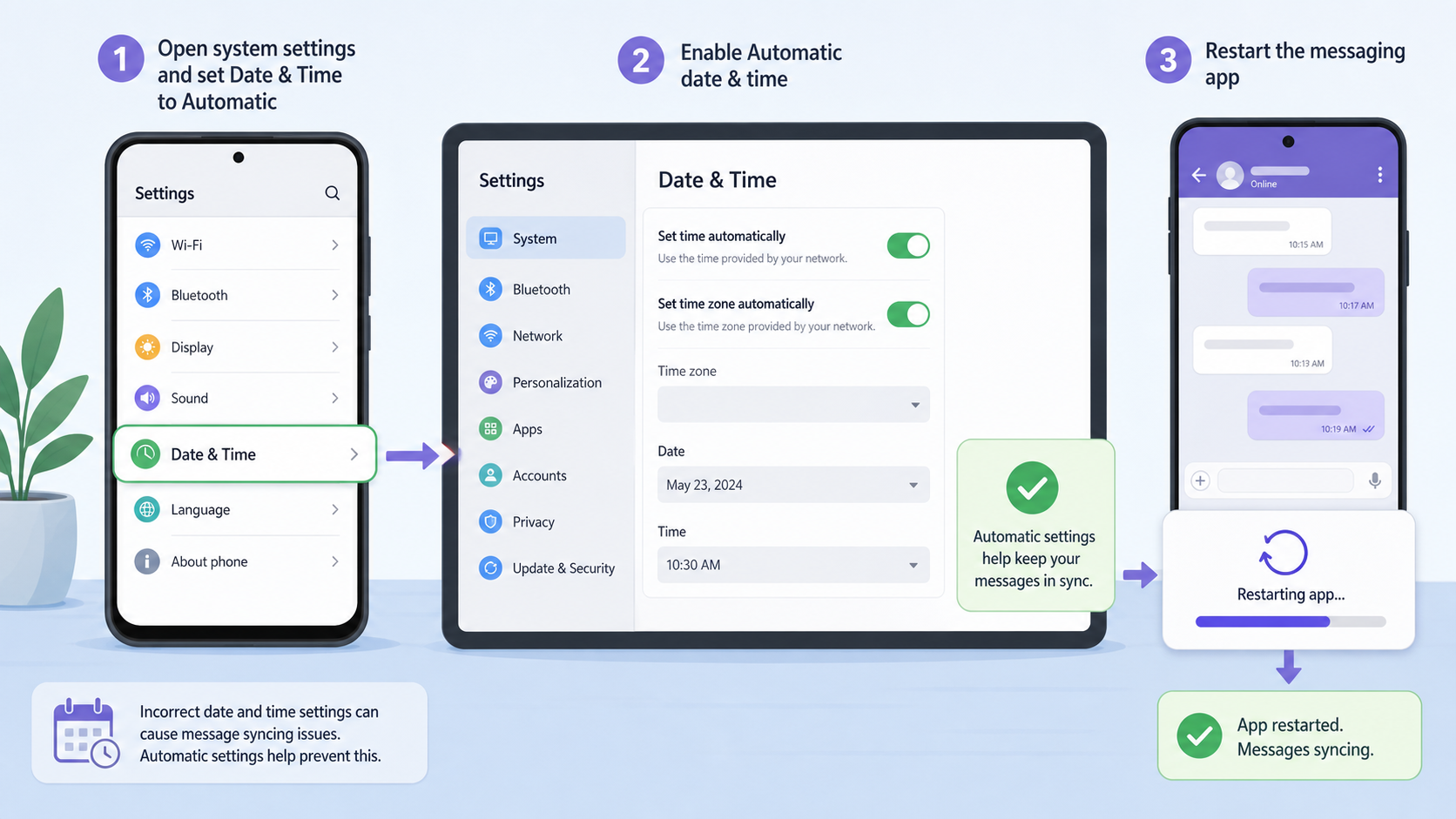
Check date and time settings
Incorrect date and time settings can cause syncing problems in messaging apps. Set your device to automatic date and time, then restart Viber. This is a small step, but it often helps with delivery and activation issues.
Fix Viber call and video call failures
Viber calls need a more stable connection than plain text messages. If calls ring but fail, connect without audio, drop after a few seconds, or have poor quality, focus on connection speed and permissions.
Check microphone, camera, and notification permissions
On iPhone, open Settings, find Viber, and allow Microphone, Camera, Contacts, and Notifications as needed. On Android, go to Settings, Apps, Viber, Permissions, and allow microphone and camera access. Without these permissions, Viber free calls and video calls may fail or work only partially.
Improve call quality
- Move closer to your Wi-Fi router.
- Stop large downloads or uploads during calls.
- Disconnect from overloaded public Wi-Fi.
- Turn off Bluetooth temporarily if audio routes incorrectly.
- Use headphones if the microphone or speaker sounds unclear.
If calls fail only with one contact, ask them to update Viber and test their network too. A call problem can be caused by either side.
Fix Viber app crashes, freezing, or not opening
If Viber keeps crashing, freezes on launch, or closes when you open a chat, the app may be outdated, storage may be low, or cached data may be corrupted.
Update Viber
Running an old version can cause compatibility issues, especially after a phone operating system update. Install the latest version from your official app store, or use the official download Viber page if you need the desktop version.
Clear cache on Android
- Open Settings on your Android phone.
- Go to Apps or App Management.
- Select Viber.
- Tap Storage.
- Choose Clear Cache.
Clearing cache does not normally delete your chats, but clearing app data can remove local settings and may require signing in again. If you are unsure, back up your chats first.
Free up device storage
Low storage can make Viber unstable and stop media from downloading or sending. Delete unnecessary files, remove unused apps, and clear old videos or large attachments. After freeing storage, restart your device and test Viber again.
Fix Viber notifications not working
Sometimes Viber works, but notifications do not appear until you open the app. This often happens because the phone is trying to save battery or because the chat was muted.
Notification checks
- Make sure Viber notifications are enabled in system settings.
- Check whether the specific chat or group is muted.
- Disable Do Not Disturb or Focus mode.
- Allow Viber to run in the background.
- Remove Viber from battery optimization or sleeping apps on Android.
On some Android brands, aggressive battery management can delay messages even when notifications are enabled. Look for settings such as Battery Optimization, Background App Management, Sleeping Apps, or Auto-Launch.
Account restrictions and activation issues
If your Viber account is restricted, some features may stop working even when your internet and app are fine. Restrictions can happen after unusual activity, repeated activation attempts, spam-like messaging, or violations of platform rules.
Signs of a possible account issue
- You cannot send messages to anyone, but your internet works.
- Activation codes do not arrive after repeated attempts.
- Your messages fail immediately across all chats.
- You recently changed numbers, devices, or SIM cards many times.
- Contacts report that they cannot reach you on Viber.
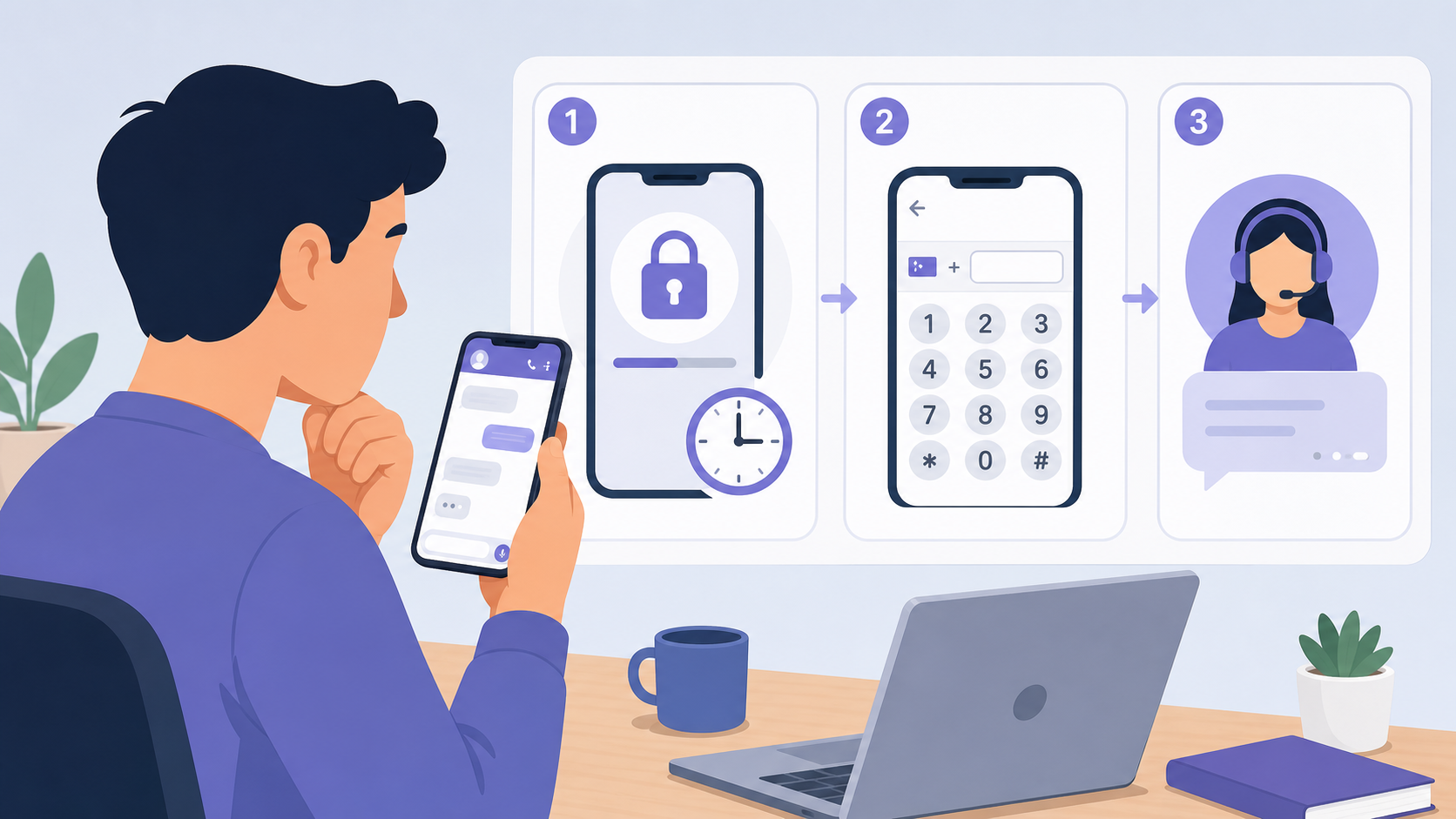
If you suspect an account restriction, avoid repeated login attempts in a short period. Wait for the suggested time, confirm that your phone number is entered in the correct international format, and contact Viber support if the restriction remains.
Should you reinstall Viber?
Reinstalling can help when the app is badly corrupted, but it should not be your first step. If you reinstall without a backup, you may lose chat history stored only on your device.
Before reinstalling
- Back up your chats from Viber settings if backup is available for your device.
- Confirm your phone number is active and can receive SMS or calls.
- Check that you know the account details needed to reactivate Viber.
- Update your phone operating system if it is far behind.
- Then uninstall and reinstall Viber from an official source.
Tip: If only one feature is broken, such as calls or notifications, fix that specific setting first. Reinstalling is more useful when Viber will not open, crashes repeatedly, or remains stuck after updates and cache clearing.
When the problem may be on Viber’s side
Sometimes there is nothing wrong with your device. Messaging services can have temporary outages, regional network problems, or server-side delays. If many users are affected at the same time, waiting is often the only practical fix.
You can check official updates, help resources, or recent posts from the Viber Blog for product news and guidance. If the issue is widespread, avoid repeated reinstalling because it is unlikely to help.
Best troubleshooting order
If you are not sure where to start, follow this order. It moves from low-risk fixes to more disruptive steps.
- Check internet access and switch networks.
- Restart Viber and your device.
- Disable VPN, proxy, data saver, and battery restrictions.
- Update Viber and your phone operating system.
- Check app permissions for microphone, camera, contacts, storage, and notifications.
- Clear cache on Android or free up storage on any device.
- Back up chats, then reinstall Viber if the app still fails.
- Contact support if activation, account restriction, or all-message failure continues.
FAQ
Why is Viber not working even though my internet is fine?
Viber may still fail because of an outdated app, VPN interference, disabled permissions, battery restrictions, low storage, or a temporary account issue. Try updating the app, disabling VPN, and checking permissions first.
Why are my Viber messages not sending?
Viber messages not sending are usually linked to poor network quality, background data restrictions, incorrect date and time settings, or a recipient-side issue. Switch networks and send a short test message to confirm.
Why do Viber calls keep failing?
Failed Viber calls are often caused by unstable Wi-Fi, blocked microphone or camera permissions, VPN use, or low bandwidth. Test another network and make sure Viber has microphone and camera access.
Will reinstalling Viber delete my messages?
It can, especially if your chats are not backed up. Before reinstalling, use Viber’s backup option where available and confirm that your phone number can receive the activation code.
How do I know if my Viber account is restricted?
If you cannot message anyone, activation repeatedly fails, or messages fail instantly across all chats while your internet works, your account may be restricted. Wait before retrying and contact support if the issue continues.
Conclusion
Most Viber problems can be fixed without advanced tools. Start with the connection, then check app updates, permissions, background settings, storage, and account status. If the issue affects only one contact or one network, the cause is usually narrow. If everything fails across all chats and networks, back up your data and escalate to reinstalling or support.