
Viber for PC works by linking the desktop app to your existing mobile Viber account, not by creating a separate account. You install Viber Desktop on your computer, open it, scan the QR code with the Viber app on your phone, and then allow your conversations to sync. Once activated, you can send messages, make calls, and receive notifications on your computer while your mobile account remains the main account.
This setup is useful if you type long messages, work from a laptop, or want calls and chats visible on a bigger screen. The key is to activate the desktop app correctly and keep both devices connected long enough for your chats to sync.
How Viber Desktop works with your mobile account
Viber Desktop is a companion app. It uses the phone number and identity already registered on your mobile device. That means you cannot normally activate Viber Desktop with only an email address or a new desktop-only profile. Your phone is used to verify that you own the account.
If you have not installed the mobile app yet, set up the Viber app on your phone first. After your phone number is activated there, you can link your computer.
What syncs between mobile and desktop?
After setup, Viber syncs active conversations so you can continue chats on either device. Messages you send from the computer also appear on your phone, and messages you receive on your phone can appear on the desktop app if syncing and notifications are working properly.
- Chats: one-to-one conversations and group chats can appear on desktop after sync.
- Contacts: Viber contacts connected to your mobile account are available on desktop.
- Calls: you can make and receive supported voice and video calls from the computer.
- Notifications: desktop alerts can be shown separately from mobile alerts.
- Account identity: your phone number and Viber profile remain the same across devices.
Important: Viber Desktop depends on your mobile account for activation. If you change phones, reinstall Viber, or deactivate the mobile account, you may need to reconnect the desktop app.
Before you start: what you need
Setup usually takes only a few minutes, but it goes more smoothly if you check the basics first.
- A working Viber account on your iPhone or Android phone.
- A Windows, macOS, or Linux computer that meets the app requirements.
- A stable internet connection on both phone and computer.
- Access to your phone camera for scanning the QR code.
- The latest available version of Viber on both devices.
Use the official download viber page to get the desktop installer and avoid outdated or modified installation files.
How to set up Viber for PC with a QR code
The QR code is the bridge between your mobile account and the desktop app. Follow the steps in order, and keep your phone nearby until the sync process finishes.
Step 1: Install Viber Desktop
- Download the correct desktop version for your operating system.
- Open the installer and follow the on-screen instructions.
- Launch Viber Desktop after installation.
- Wait for the QR code screen to appear.
If the QR code does not appear, close the app and reopen it. Also check that your computer is online and that no firewall or VPN setting is blocking the app.
Step 2: Open the QR scanner on your phone
- Open Viber on your phone.
- Go to the menu or More screen, depending on your device.
- Choose the QR code scanner option.
- Allow camera access if your phone asks for permission.
Hold the phone steady and make sure the full QR code is visible on the computer screen. Avoid glare, low brightness, or zoomed-in display settings that cut off part of the code.
Step 3: Scan the QR code and approve activation
After scanning, your phone may ask you to confirm that you want to activate Viber Desktop. Review the prompt and approve it. This protects your account from being linked to a computer you do not recognize.
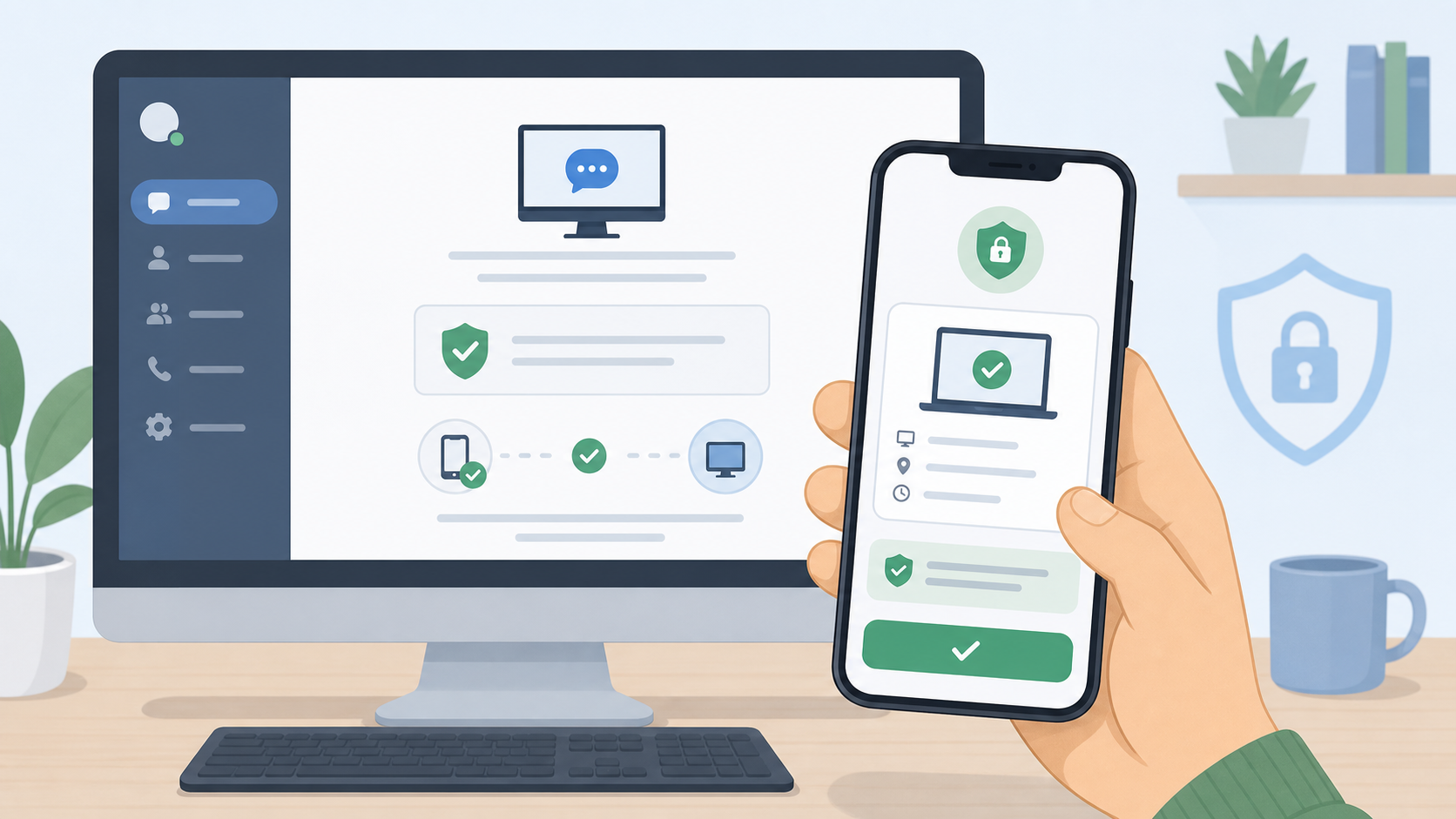
Once approved, the desktop app should move from the QR screen to your Viber interface. In some cases, you may see a message asking whether you want to sync chat history. Accept the sync request if you want previous conversations available on the computer.
Step 4: Let conversations sync
Keep both devices connected to the internet while syncing. If you have many chats or media files, the process may take longer. Do not uninstall the mobile app or close Viber Desktop during this stage unless the app is clearly stuck.
For best results, keep your phone unlocked for a short time after approving sync. Some phones restrict background activity aggressively, which can slow down the initial transfer.
Viber mobile vs Viber Desktop: what is different?
Viber Desktop gives you most everyday messaging features, but it is still linked to the mobile account. The table below shows the practical differences.
| Feature | Viber on mobile | Viber Desktop |
|---|---|---|
| Account activation | Primary activation with phone number | Activated by scanning a QR code from the mobile app |
| Message sending | Yes | Yes, after linking to mobile account |
| Message sync | Main account source | Syncs conversations from the linked account |
| Notifications | Managed by phone settings and Viber settings | Managed by desktop app and operating system settings |
| Calls | Voice and video calls supported | Voice and video calls supported when device permissions work |
| Best use | Mobility, quick replies, phone contacts | Typing, multitasking, work sessions, longer calls |
How to avoid missing mobile messages on PC
Most missed-message complaints come from notification settings, poor sync conditions, or the desktop app being inactive. Here is what to check.
Keep both apps updated
Running an old desktop version with a newer mobile version can cause syncing or calling issues. Update Viber on your phone through your app store and update Viber Desktop from the desktop app or official download page.
Check desktop notification settings
Viber Desktop can be working correctly even if you do not see alerts. Check notification settings in three places:
- Inside Viber Desktop: make sure message notifications are enabled.
- Operating system settings: allow notifications from Viber on Windows or macOS.
- Focus or Do Not Disturb mode: turn it off or add Viber as an allowed app.
If you use Viber during work hours, it is worth testing notifications with a friend. Ask them to send a message while Viber Desktop is minimized, then confirm whether you see a banner, sound, or badge.
Keep Viber Desktop signed in
If you sign out, clear app data, reinstall your operating system, or remove the linked desktop device from your phone, Viber Desktop will stop receiving messages until you activate it again. If you share a computer, sign out only when necessary and understand that you will need your phone to reconnect.
Review muted chats
If only one group or contact seems silent, the issue may not be sync. Open that chat and check whether it is muted. Muted conversations can still receive messages, but they may not trigger normal alerts.
How to sync Viber messages after setup
When Viber asks to sync conversations, approve the request on both devices if needed. A stable Wi-Fi connection is recommended, especially if your chat history contains many photos, videos, or voice messages.
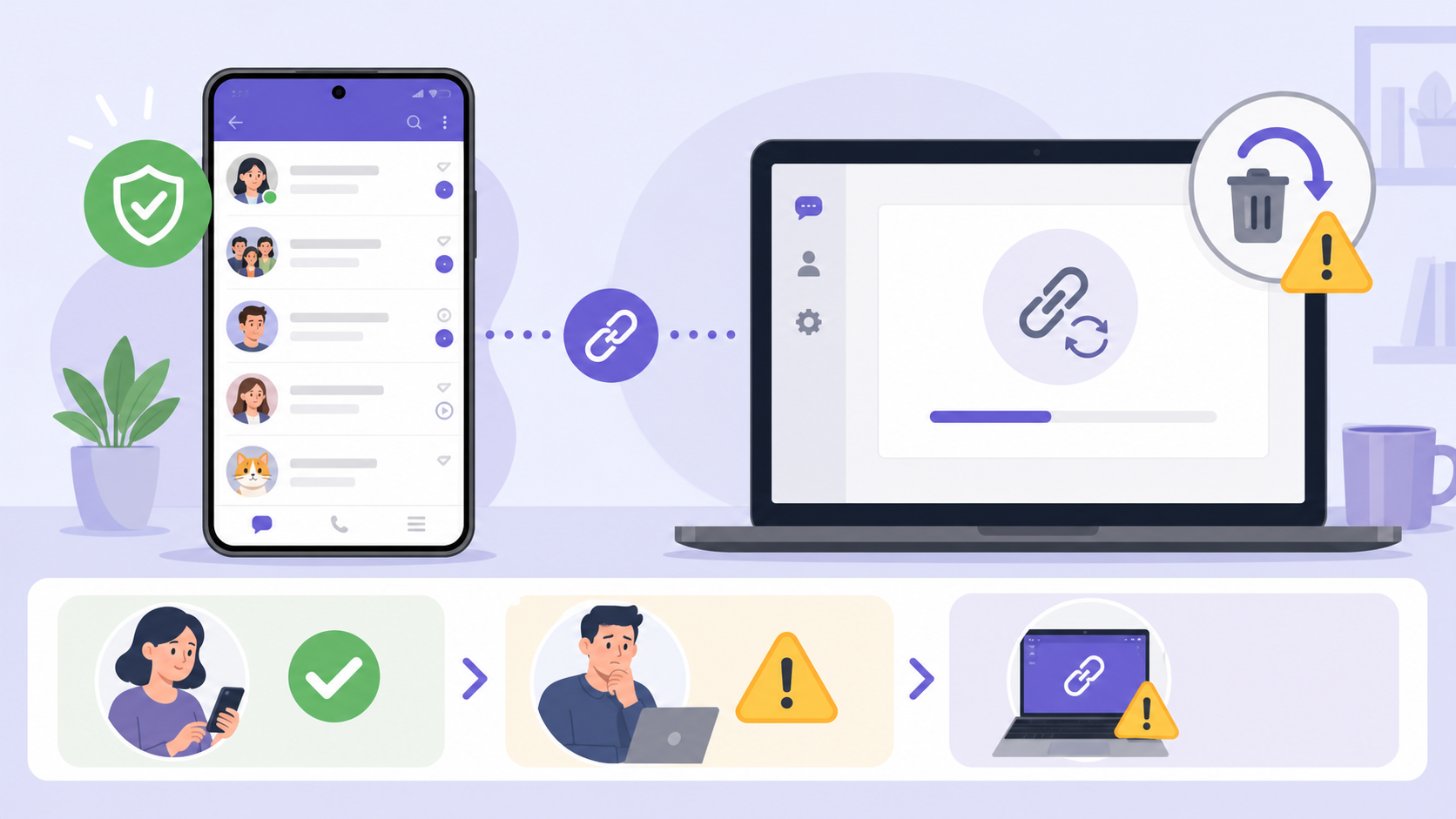
If new messages appear but old chats are missing
This can happen when the initial sync was skipped, interrupted, or limited. Try these steps:
- Update Viber on both phone and computer.
- Restart both devices.
- Open Viber on the phone and desktop at the same time.
- Look for any pending sync approval prompts.
- If needed, unlink the desktop app and activate it again with a new QR code.
Before unlinking or reinstalling, make sure your important mobile chats are available on the phone. Desktop relinking should not be treated as a backup method.
If messages arrive late on desktop
Delayed messages usually point to network or background activity limits. Try using the same Wi-Fi network for both devices during testing. Disable battery saver on your phone temporarily, and check whether a VPN, proxy, or firewall is interfering with Viber Desktop.
Fix common Viber Desktop connection problems
If Viber Desktop will not connect, the cause is often simple: an expired QR code, blocked camera access, weak internet, or security software blocking the desktop app.
QR code will not scan
- Increase your computer screen brightness.
- Clean your phone camera lens.
- Move the phone closer or farther away until the code is sharp.
- Refresh the QR code by restarting Viber Desktop.
- Allow camera permission for the mobile app.
Desktop app says it is offline
- Check whether other desktop apps can access the internet.
- Restart your router if the connection is unstable.
- Temporarily disable VPN or proxy tools and test again.
- Allow Viber through your firewall or antivirus software.
- Restart Viber Desktop after changing network settings.
Sync is stuck or incomplete
- Keep the phone and computer awake during the first sync.
- Connect both devices to reliable Wi-Fi.
- Free up storage space on your phone and computer.
- Update both apps, then restart them.
- Reconnect the desktop app only if simpler fixes do not work.
For product updates, feature notes, and usage tips, the Viber Blog can also be a useful place to check what has changed recently.
Security tips when using Viber on a computer
Because Viber Desktop gives access to your conversations, treat it like any other signed-in messaging app. This matters most on shared, office, or borrowed computers.
- Use Viber Desktop only on computers you trust.
- Lock your computer when you step away.
- Do not scan a QR code shown by someone else.
- Remove old or unknown desktop sessions from your mobile app if available.
- Keep your operating system and Viber app updated.
If you lose access to a computer where Viber Desktop is active, review your connected devices from your phone and remove the session if the option is available. This helps prevent someone else from reading new messages.
Quick setup checklist
Use this short checklist if you want the fastest reliable setup.
- Install and activate Viber on your phone first.
- Download and install Viber Desktop on your computer.
- Open Viber Desktop and scan the QR code with your phone.
- Approve activation on the phone.
- Accept chat sync when prompted.
- Keep both devices online until sync completes.
- Enable desktop notifications and test them.
- Check firewall, VPN, and focus mode settings if alerts do not appear.
Conclusion
Using Viber on PC is straightforward once you understand that the desktop app is linked to your mobile account. The phone activates the computer through a QR code, and conversations sync after approval. If messages do not appear or notifications are missed, focus first on updates, internet connection, notification permissions, and any firewall or VPN settings. With those basics in place, Viber Desktop is a practical way to keep up with chats and calls without constantly picking up your phone.
FAQ
Can I use Viber for PC without my phone?
You need your phone to activate Viber Desktop because the desktop app links to your existing mobile account. After activation, you can use the desktop app for messaging and calls, but your mobile account remains the primary account.
Why are my Viber messages not syncing to desktop?
Common causes include an interrupted initial sync, outdated apps, unstable internet, battery restrictions on the phone, or a firewall blocking Viber Desktop. Update both apps, restart both devices, and keep them online together for a few minutes.
How do I scan the Viber Desktop QR code?
Open Viber on your phone, go to the QR scanner from the menu or More screen, and point the camera at the QR code shown in Viber Desktop. Approve the activation prompt when it appears.
Will Viber Desktop show the same messages as my phone?
It should show synced conversations from the linked mobile account. New messages normally appear on both devices, but old chat history may depend on whether you approved and completed the sync process.
Why am I not getting Viber notifications on my computer?
Check notifications inside Viber Desktop, your Windows or macOS notification settings, and Focus or Do Not Disturb mode. Also make sure the chat is not muted and that Viber Desktop is still signed in.