
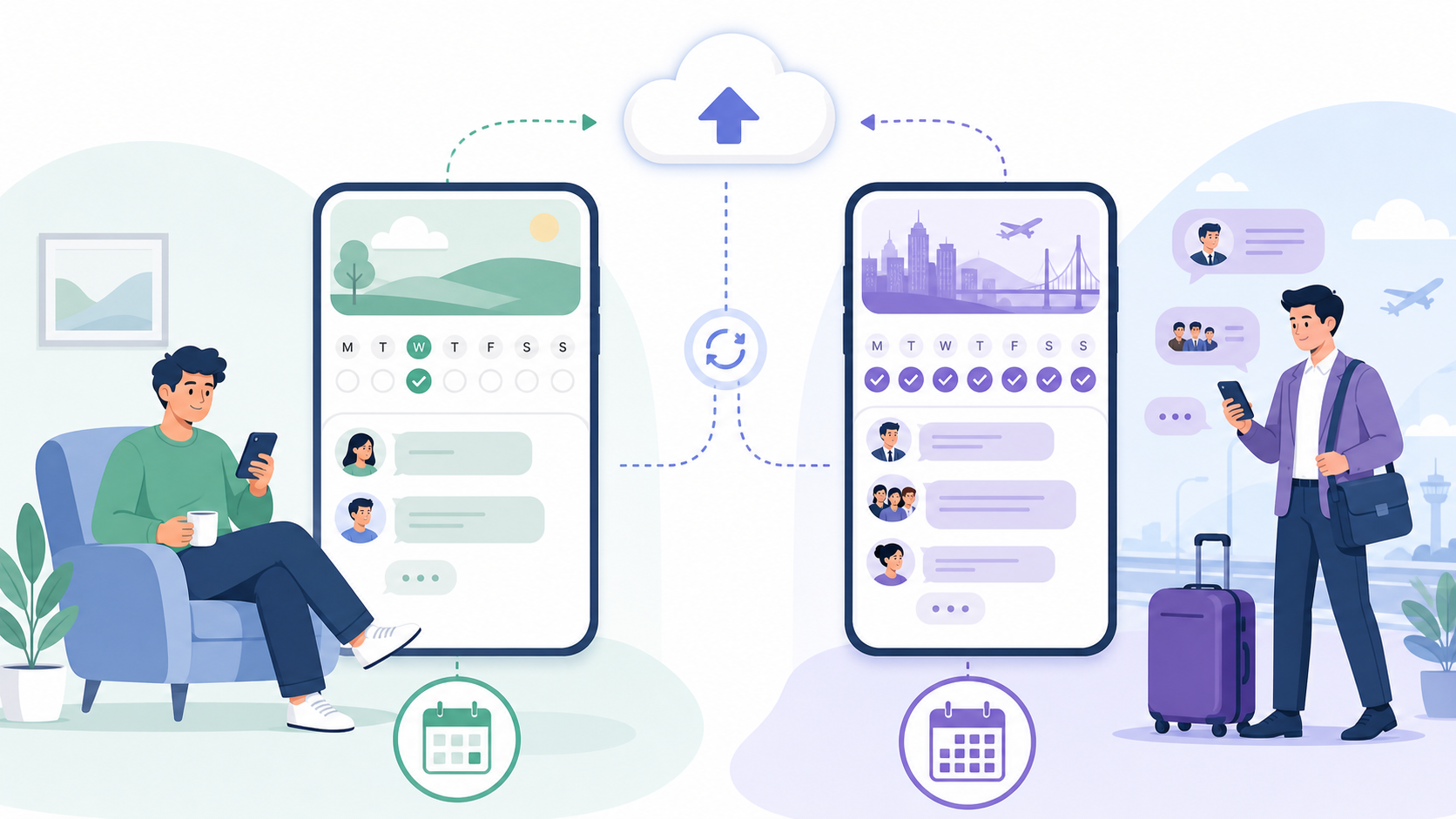
Viber backup lets you save your Viber chat history to Google Drive on Android or iCloud on iPhone, then restore those messages when you reinstall Viber or set up a new phone. To restore successfully, you normally need the same phone number, the same platform type, and access to the same cloud account used for the backup.
If you use the Viber app for daily chats, it is worth setting up automatic backups before you need them. Viber does not keep a full copy of every message on its own servers for you to recover later, so the cloud backup on your phone is the main recovery option.
How Viber Backup Works
Viber backups are stored in the cloud account connected to your phone. Android uses Google Drive, while iPhone uses iCloud. The backup is linked to your Viber phone number and your device platform, which is why restoring is usually straightforward only when those details match.
| Device | Cloud service used | Account requirement | Typical restore use |
|---|---|---|---|
| Android | Google Drive | A Google account added to the phone | Restore after reinstalling Viber or moving to another Android phone |
| iPhone | iCloud | Apple ID signed in to iCloud with iCloud Drive enabled | Restore after reinstalling Viber or moving to another iPhone |
One important limitation: Viber backups are platform-based. An Android backup is intended for Android, and an iPhone backup is intended for iPhone. If you switch from Android to iPhone, or from iPhone to Android, you should not assume your Viber backup can be restored across the two systems.
What Is Included in a Viber Backup
A Viber backup is mainly designed to preserve your message history. In practical terms, this usually means your one-to-one chats and group message history that exists on the phone at the time of backup.
Usually included
- Text messages in your Viber chats
- Group chat message history stored on the device
- Basic chat history needed to bring conversations back after reinstalling
Usually not included
- Photos, videos, and other large media files may not be restored as part of the message backup
- Voice and video call history may not be recoverable from chat backup
- Messages deleted before the backup was created
- Messages that never fully synced or downloaded to the phone
- Chats from a different phone number or different cloud account
- Backups from the other platform, such as Android to iPhone or iPhone to Android
Before resetting your phone, save important photos, videos, and files separately. A Viber chat backup should not be treated as a complete media archive.
Before You Back Up Viber Messages
A clean backup starts with the right setup. Check these points before you create a Viber backup, especially if you plan to change phones.
- Make sure Viber is updated to the latest version.
- Confirm that your phone number in Viber is the number you will use during restore.
- Sign in to the correct Google account on Android or Apple ID on iPhone.
- Check that Google Drive or iCloud has enough available storage.
- Use a stable Wi-Fi connection, especially if your chat history is large.
- Keep the phone charged or plugged in during backup.
If you are setting up Viber again from scratch, use the official source to download Viber before restoring your chat history.
How to Back Up Viber Messages on Android
On Android, Viber backup uses Google Drive. You must have a Google account added to your phone and permission for Viber to use Google Drive backup.
Manual Android backup steps
- Open Viber on your Android phone.
- Tap More.
- Open Settings.
- Tap Account.
- Select Viber Backup.
- Choose the Google account you want to use, if prompted.
- Tap Back up.
- Wait until the backup is finished before closing the app or switching networks.
Automatic Android backup steps
- Open Viber and go to More.
- Tap Settings, then Account.
- Open Viber Backup.
- Choose Auto backup.
- Select a frequency, such as daily, weekly, or monthly, depending on how often you chat.
For most people, weekly backup is enough. If you use Viber for work, travel, or active group conversations, daily backup is safer.
How to Restore Viber Messages on Android
To restore Viber messages on Android, install Viber, verify the same phone number, and connect to the same Google account used for the backup.
- Install or open Viber on the Android phone.
- Verify your phone number. Use the same number used when the backup was created.
- When Viber detects a backup, choose Restore.
- Wait for the restore process to complete.
- Open your chats and check that the expected conversations are available.
If the restore prompt does not appear, check that the correct Google account is active on the phone. A common mistake is being signed in to a different Google account than the one that holds the Viber backup.
How to Back Up Viber Messages on iPhone
On iPhone, Viber backup uses iCloud. You need to be signed in with an Apple ID, have iCloud Drive enabled, and have enough iCloud storage for the backup.
Manual iPhone backup steps
- Open Viber on your iPhone.
- Tap More.
- Go to Settings.
- Tap Account.
- Select Viber Backup.
- Tap Back up now.
- Keep Viber open and stay connected to Wi-Fi until the backup completes.
Automatic iPhone backup steps
- Open Viber and tap More.
- Go to Settings, then Account.
- Tap Viber Backup.
- Choose Auto backup.
- Select how often Viber should back up your chat history.
If iCloud storage is almost full, the backup may fail or remain incomplete. You can either free up iCloud space or upgrade your iCloud storage plan before trying again.
How to Restore Viber Messages on iPhone
To restore Viber chat history on iPhone, use the same phone number and the same Apple ID/iCloud account that created the backup.
- Install or open Viber on your iPhone.
- Verify the same phone number used for the backup.
- Make sure the iPhone is signed in to the correct Apple ID.
- When Viber offers to restore your backup, tap Restore.
- Wait until the restore is complete before using Viber heavily.
If you skip the restore during setup, you may need to reinstall Viber and go through activation again to trigger the restore option. Make sure a recent backup exists before doing this.
Android vs iPhone Viber Backup Comparison
| Feature | Android | iPhone |
|---|---|---|
| Cloud account | Google account | Apple ID with iCloud |
| Cloud storage service | Google Drive | iCloud |
| Best restore match | Android to Android | iPhone to iPhone |
| Cross-platform restore | Not normally supported to iPhone | Not normally supported to Android |
| Needs same phone number | Yes | Yes |
| Media files fully restored | Do not rely on backup for full media recovery | Do not rely on backup for full media recovery |
Troubleshooting Failed Viber Restores
Most Viber restore problems come down to account mismatch, missing backups, weak connection, low storage, or trying to restore across Android and iPhone. Work through the checks below before assuming your chat history is gone.
1. Check the phone number
Viber backups are tied to the phone number used when the backup was created. If you activate Viber with a different number, the old backup may not appear.
2. Check the cloud account
On Android, confirm that the same Google account is added to the phone. On iPhone, confirm that the same Apple ID is signed in and that iCloud Drive is enabled.
3. Confirm that a backup actually exists
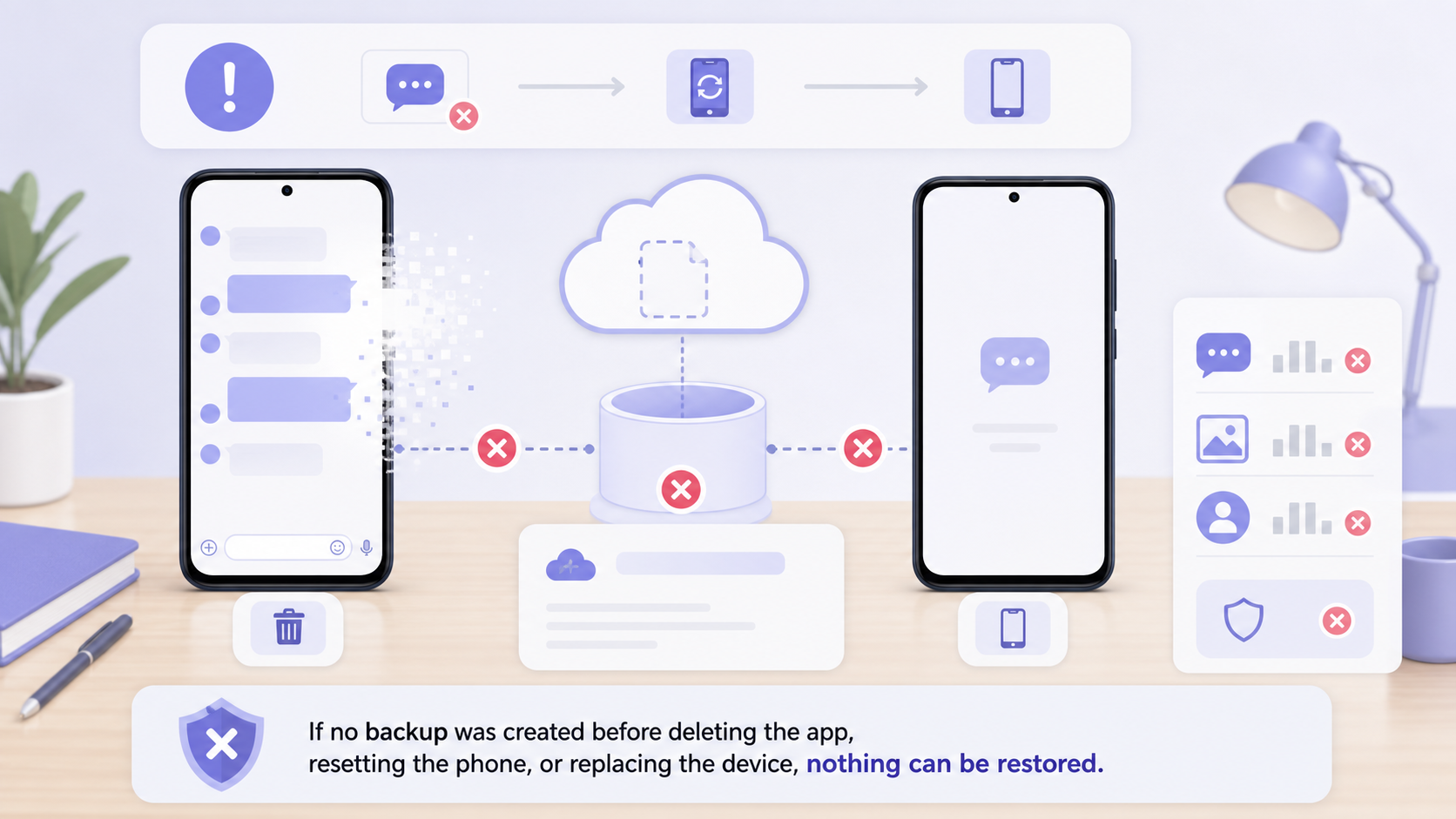
If no backup was created before deleting Viber, resetting the phone, or replacing the device, there may be nothing available to restore. Viber cannot restore messages from a backup that was never made.
4. Update Viber and your phone system
An outdated app can cause backup detection or restore errors. Update Viber and install available Android or iOS updates, then try again.
5. Free up storage
You need enough space in two places: your cloud account for the backup and your phone for the restored data. Low storage can interrupt the process.
6. Use a strong connection
Restore over a reliable Wi-Fi network. Avoid switching networks, using aggressive battery saver modes, or closing Viber while the restore is running.
7. Do not mix Android and iPhone backups
If you backed up Viber on Android, restore it to Android. If you backed up on iPhone, restore it to iPhone. Cross-platform restores are a common reason users cannot find their backup.
Best Practices to Protect Your Viber Chat History
- Turn on automatic backups instead of relying on memory.
- Create a manual backup before changing phones, resetting your device, or reinstalling Viber.
- Use the same phone number during restore whenever possible.
- Keep your Google or iCloud account credentials accessible.
- Save important photos, videos, and documents outside Viber.
- Check backup status occasionally to make sure recent backups are completing.
For more practical guides about the Viber Blog and related features, it is useful to review backup steps before a device change rather than after something goes wrong.
FAQ
Can I restore Viber messages without a backup?
Usually no. If you deleted Viber or reset your phone without creating a cloud backup, Viber generally cannot recover your old chat history.
Can I restore Viber backup from Android to iPhone?
Viber backups are platform-based, so Android backups are intended for Android and iPhone backups are intended for iPhone. Cross-platform restore is not normally supported.
Why is my Viber backup not showing?
The most common reasons are using the wrong Google or iCloud account, verifying a different phone number, having no existing backup, or trying to restore on the wrong platform.
Does Viber backup include photos and videos?
Do not rely on Viber backup as a complete media backup. Important photos, videos, and files should be saved separately to your phone, computer, or cloud storage.
How often should I back up Viber messages?
If you use Viber often, choose daily or weekly automatic backup. Also create a manual backup before reinstalling the app, changing phones, or resetting your device.