
To set up Viber on a new phone without losing your chats, back up your chat history on the old phone first, install Viber on the new device, verify the same phone number, and restore the backup when Viber prompts you. The key point is simple: do not wipe or give away your old phone until you have confirmed that the backup exists and your messages have restored properly.
If you still need the app on your new device, you can download Viber before starting the restore process. The steps below explain what to do on Android and iPhone, what to check before switching, and how to avoid the most common Viber backup problems.
Before You Move Viber to a New Phone
A smooth Viber new phone setup depends on three things: the same phone number, a current cloud backup, and access to the correct Google or Apple account. If one of these is missing, Viber may activate on the new phone but fail to restore your chat history.
Quick checklist before switching devices
- Update Viber on your old phone to the latest version.
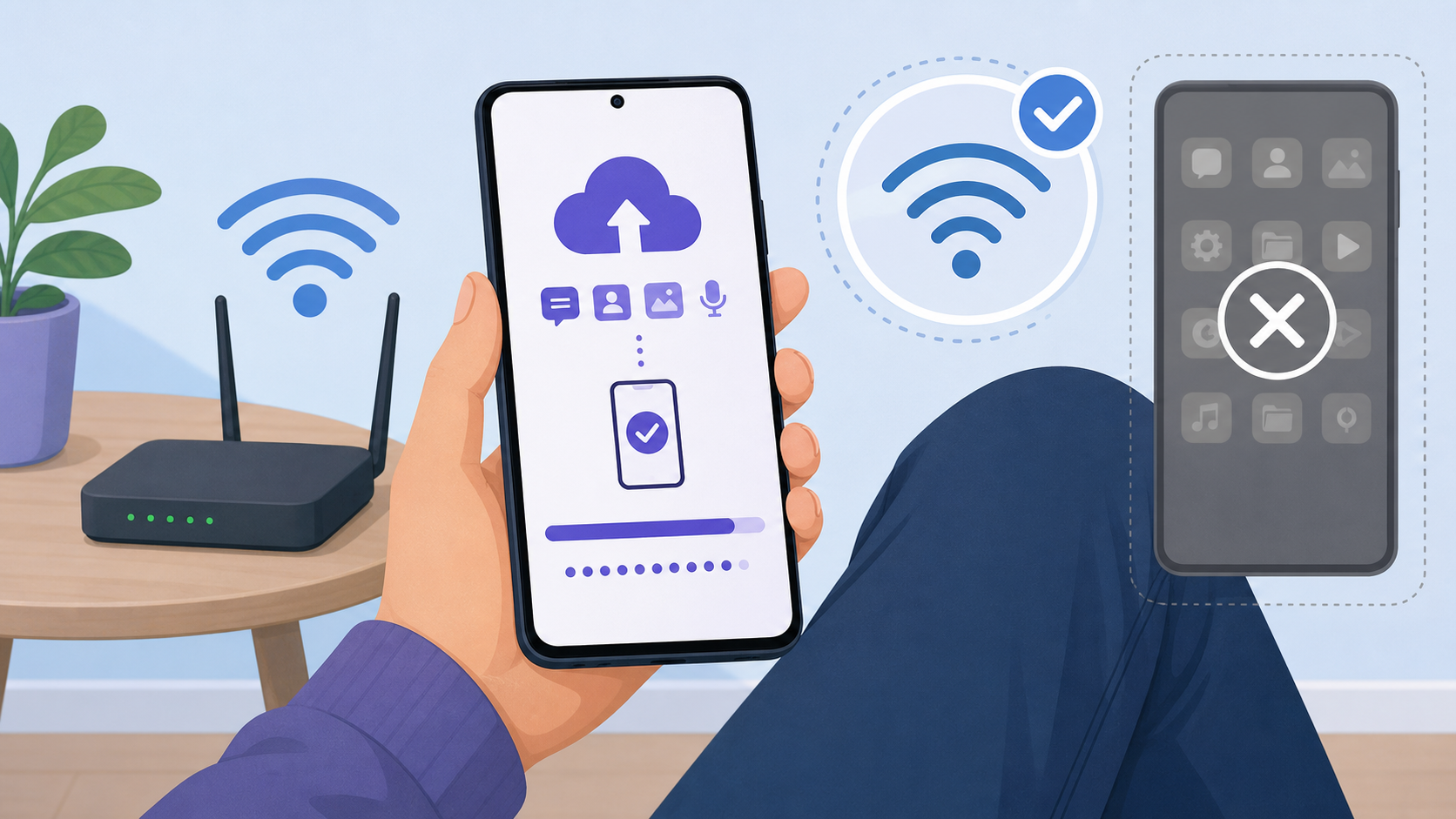
- Connect to a stable Wi-Fi network before creating a backup.
- Make sure your old phone has enough battery or is plugged in.
- Confirm that you are signed in to the right Google account on Android or Apple ID/iCloud account on iPhone.
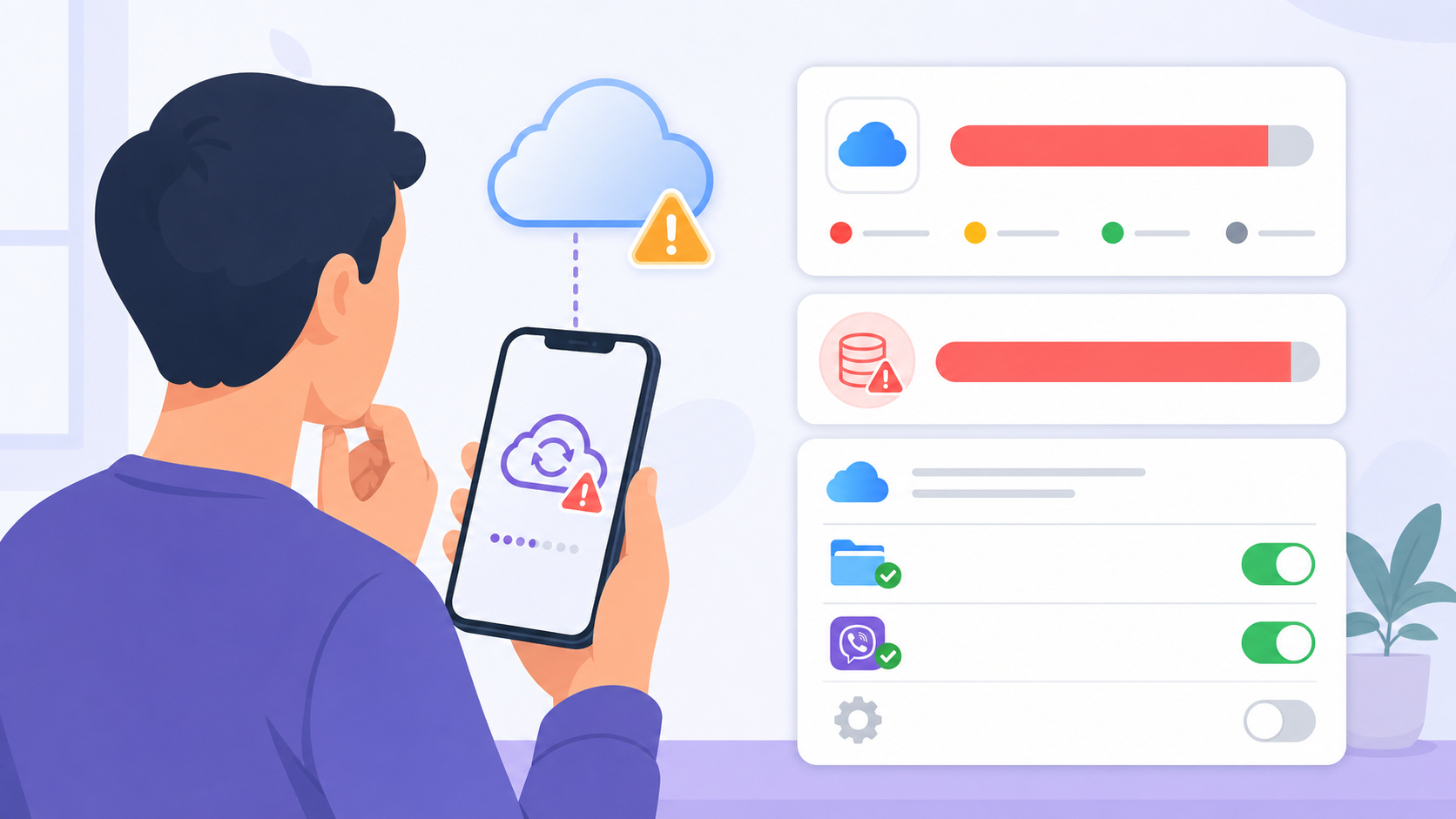
- Check that cloud storage has enough free space for the Viber backup.
- Keep the same phone number active so you can receive the verification code.
- Save important photos, videos, files, or voice messages separately if they matter to you.
Do the backup while your old phone is still working and connected. Waiting until after the phone is reset, broken, or traded in is the most common reason people cannot restore Viber chats.
How Viber Backup Works on Android and iPhone
Viber stores your account around your phone number, but chat history restoration depends on cloud backup. On Android, Viber backup is linked to Google Drive. On iPhone, it is linked to iCloud. In most cases, you should restore on the same platform type: Android to Android or iPhone to iPhone.
| Device move | Backup service | Can restore chats? | Important note |
|---|---|---|---|
| Android to Android | Google Drive | Yes, if the backup is available | Use the same phone number and Google account. |
| iPhone to iPhone | iCloud | Yes, if the backup is available | Use the same phone number and Apple ID/iCloud account. |
| Android to iPhone | Google Drive to iCloud | Usually not supported through normal Viber backup | Backups are platform-specific, so save important content separately. |
| iPhone to Android | iCloud to Google Drive | Usually not supported through normal Viber backup | Plan ahead before changing platforms. |
Viber backup features may vary by app version and region. As a safe habit, treat the Viber restore process as the main way to recover messages, but keep separate copies of important media, documents, and business information.
Step 1: Back Up Viber Chats on Your Old Phone
Start with the old device. This is where your current chat history lives, and it is the only place where you can create a fresh backup before moving to the new phone.
Back up Viber on Android
- Open the Viber app on your old Android phone.
- Tap More.
- Go to Settings.
- Tap Account.
- Select Viber Backup.
- Connect or confirm the Google Drive account you want to use.
- Tap Back Up and wait until the process finishes.
After the backup completes, check the date and time shown on the backup screen. If the latest backup is old, run it again before moving to the new phone.
Back up Viber on iPhone
- Open Viber on your old iPhone.
- Tap More.
- Open Settings.
- Tap Account.
- Select Viber Backup.
- Make sure iCloud is enabled and you are signed in with the correct Apple ID.
- Tap Back Up Now and wait for it to complete.
If the backup does not start, check iCloud Drive, available iCloud storage, and whether Viber has permission to use iCloud.
Step 2: Install Viber on the New Phone
Once the backup is complete, set up your new device and install Viber. Use the official app source for your phone, and avoid unofficial app files or modified versions because they can cause login, backup, or security issues.
If you are setting up from scratch, use the official Viber Download page or your device’s app store. Open the app only after your SIM, eSIM, or phone number is ready to receive the verification code.
Step 3: Verify the Same Phone Number
Viber restore chats depends on account verification. On the new phone, enter the same phone number you used on the old phone unless you intentionally changed your number before switching.
- Open Viber on the new phone.
- Choose your country code.
- Enter your phone number carefully.
- Wait for the SMS or call verification code.
- Enter the code if it is not detected automatically.
- Complete the basic profile setup if prompted.
If you are changing numbers, use Viber’s change number feature on the old phone before moving devices when possible. This helps Viber associate your account with the new number before you restore on the new device.
Step 4: Restore Viber Chats on the New Phone
After verification, Viber should detect an available backup if you are using the same platform, phone number, and cloud account. When the restore prompt appears, choose to restore your chat history before you start using the app heavily on the new phone.
Restore Viber chats on Android
- Make sure the new Android phone is signed in to the same Google account used for the backup.
- Open Viber and verify your phone number.
- When Viber finds the Google Drive backup, tap Restore.
- Keep the phone connected to Wi-Fi until the restore finishes.
- Open several important chats to confirm that messages are back.
Restore Viber chats on iPhone
- Sign in to the same Apple ID used on the old iPhone.
- Enable iCloud Drive and allow Viber to access iCloud.
- Open Viber and verify your phone number.
- Tap Restore when the iCloud backup is detected.
- Wait for the restore to finish before closing the app.
If Viber does not show a restore option, stop and check your cloud account before continuing. Creating a new backup from the new phone too early may overwrite or complicate access to the old backup.
What May Not Transfer With a Viber Backup
Viber backup is designed mainly for chat history, but not every item in your account is guaranteed to move in the same way. Before switching devices, review anything you cannot afford to lose.
- Media files: Photos, videos, and files may not always be included in the way you expect. Save important items separately to your phone, computer, or cloud storage.
- Cross-platform history: Moving from Android to iPhone, or iPhone to Android, is limited because backups use different cloud systems.
- Old deleted messages: A backup cannot restore messages deleted before the backup was created.
- Desktop history: Viber Desktop sync is not a replacement for mobile cloud backup.
- Hidden or protected content: Some privacy-related items may require extra setup after restoring.
Common Mistakes to Avoid Before Switching Phones
Most Viber restore problems are preventable. Before you reset the old phone, sell it, or remove the SIM, take a few minutes to check these points.
- Resetting the old phone too early: Always restore and verify chats on the new phone first.
- Using the wrong cloud account: Android needs the same Google account; iPhone needs the same Apple ID and iCloud setup.
- Skipping the manual backup: Automatic backups may be old. Run a fresh backup before switching.
- Changing platforms without planning: Android and iPhone backups are not easily interchangeable.
- Entering a different phone number: Use the same number unless you changed it inside Viber first.
- Ignoring storage limits: Full Google Drive or iCloud storage can prevent a complete backup.
- Closing Viber during restore: Keep the app open and connected until the restore finishes.
Troubleshooting: Viber Backup or Restore Is Not Working
Viber cannot find my backup
Check that you are signed in to the same Google account or Apple ID used on the old phone. Also confirm that the phone number is the same and that the backup was completed successfully.
The restore is stuck or very slow
Use a strong Wi-Fi connection, keep the phone unlocked for a while, and avoid switching between apps. Large backups can take time, especially if they include a lot of chat data.
I changed from Android to iPhone or iPhone to Android
Normal Viber backup restore is usually platform-specific. If you are changing operating systems, export or save important information before switching. For critical business or legal conversations, keep separate records outside the app.
I did not receive the verification code
Check the country code and phone number, make sure the SIM or eSIM is active, and wait before requesting another code. Too many attempts in a short time may temporarily delay verification.
Final Checks After Restoring Viber
After the restore completes, open your most important chats and confirm that recent messages are present. Then check whether photos, videos, files, group chats, and settings look right. If anything is missing, keep the old phone untouched until you understand whether the data can be recovered or saved separately.
The safest approach is to treat the move as a short handover: back up on the old phone, restore on the new phone, verify the result, and only then reset the old device. That simple order prevents most Viber new phone problems.
FAQ
Can I move Viber to a new phone without losing messages?
Yes, if you create a Viber backup on the old phone and restore it on the new phone using the same phone number and the correct Google Drive or iCloud account.
Does Viber automatically restore chats on a new phone?
Viber may detect a backup after number verification, but you usually need to choose the restore option. Do not skip the restore prompt if you want your chat history back.
Can I restore Viber chats from Android to iPhone?
In normal Viber backup and restore, Android uses Google Drive and iPhone uses iCloud, so cross-platform chat restore is usually limited. Save important content separately before changing platforms.
What should I do before resetting my old phone?
Run a fresh Viber backup, install and verify Viber on the new phone, restore your chats, and check important conversations. Reset the old phone only after you confirm the restore worked.
Why are some Viber photos or videos missing after restore?
Viber backups may not preserve every media item in the same way as text chats. Save important photos, videos, and files separately before switching phones.